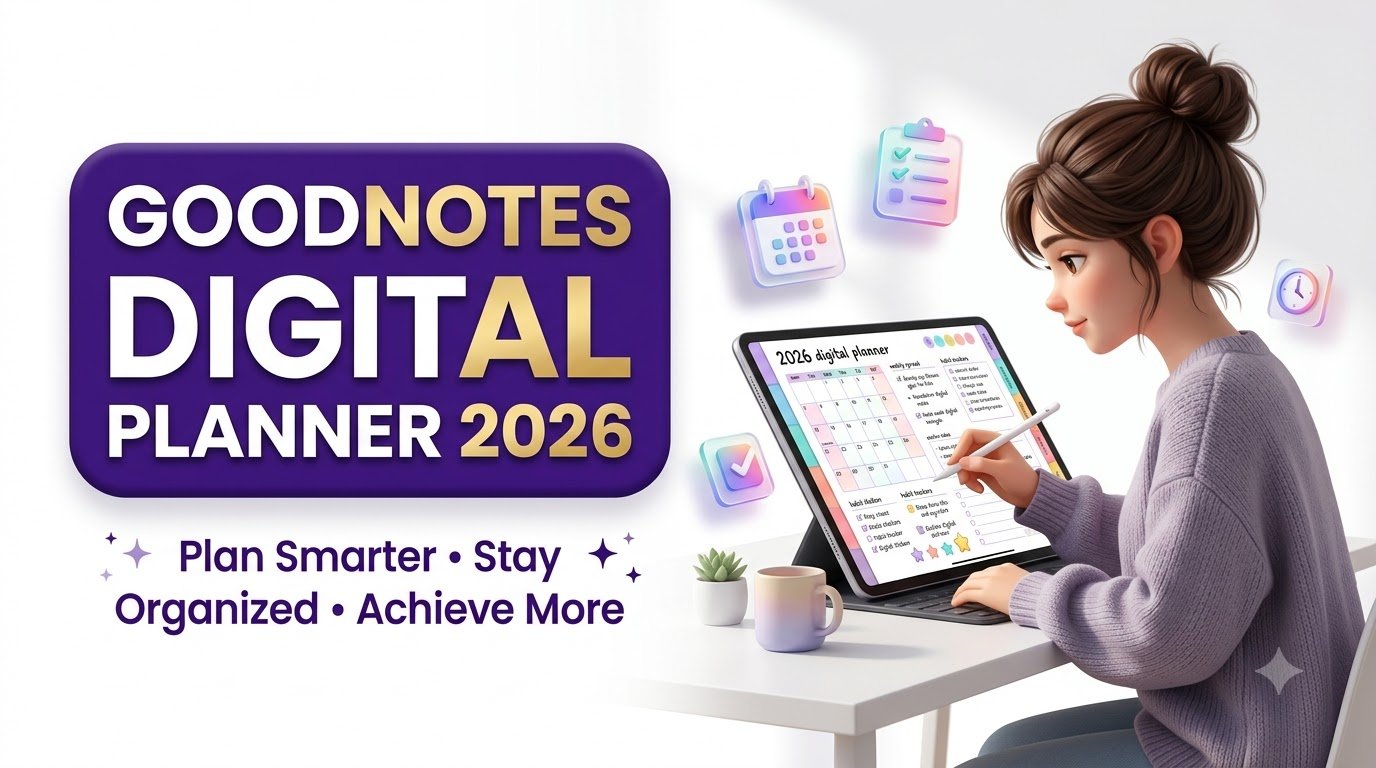
Discover the best digital planner for Good-notes in 2026. Learn how to choose, import, customise, and use digital planners to organise your life.
Digital Planner for Goodnotes: The Ultimate Guide to Planning a More Organized Life in 2026
Your schedule shouldn’t feel like another problem to solve. Discover how a beautifully designed digital planner can turn scattered tasks, forgotten appointments, and unfinished goals into a planning system you’ll actually enjoy using.
Inside this guide: Planner features, buying tips, setup instructions, productivity routines, common mistakes, five FAQs, and a five-question interactive quiz.
Explore Digital Planning Resources → Learn How to Get StartedUpdated October 2026 • Beginner-friendly • Includes compatibility guidance
It starts with a few small things. A meeting you forgot to add to your calendar. A shopping list buried in your notes app. A personal goal you wrote down last month and haven’t looked at since.
Before long, your day feels busy, but you aren’t always sure what you’ve accomplished.
A digital planner for Goodnotes offers a way to bring those moving pieces together. It combines the familiar experience of writing in a paper planner with the flexibility of a digital document: reusable templates, organized sections, colorful annotations, and quick navigation between pages.
But buying the prettiest planner you can find isn’t enough. The real difference comes from choosing a layout that suits your routine and knowing how to use it consistently.
What Is a Goodnotes Digital Planner?
Quick answer: A Goodnotes digital planner is usually a PDF document containing structured planning pages. You import it into the Goodnotes app and use handwriting, typing, highlights, and other supported annotation tools to organize your schedule, goals, habits, finances, or projects.
Instead of carrying separate notebooks for appointments, tasks, and personal goals, you can keep a collection of planning pages inside one digital workspace.
Many premium planners also include hyperlinks connecting their yearly, monthly, weekly, and daily sections. Tapping a linked tab can help you jump to the page you need without endless scrolling.
Unlike a traditional calendar app, a PDF planner generally doesn’t create reminders automatically or sync handwritten appointments to your calendar. Its advantage is flexible, visual planning rather than automatic scheduling.
Goodnotes supports imported PDFs on Apple devices and supported Android, Windows, and web experiences. However, certain editing, account, synchronization, and subscription capabilities depend on the platform and plan.
Why Digital Planners Are Worth Considering
Digital planning isn’t about making your life look perfectly organized on a screen. It’s about reducing the effort required to decide what matters next.
✍️ Familiar Handwriting
Write daily priorities, brainstorm ideas, and sketch plans with a compatible stylus or other supported input tools.
🧭 Faster Navigation
Use linked tabs and an organized page structure to move between goals, monthly calendars, and daily schedules.
🎨 Personal Expression
Customize your pages with color coding, stickers, highlights, and handwriting without carrying extra stationery.
📚 Flexible Organization
Keep work projects, personal routines, study schedules, and notes in structured planning sections.
10 Essential Features of the Best Goodnotes Digital Planner
Before searching for a premium Goodnotes planner download, look beyond the cover design. The features inside determine how useful it becomes.
- Hyperlinked navigation: Clearly labeled tabs for moving between major planning sections.
- Undated layouts: Reusable pages that don’t expire at the end of the year.
- Daily priority sections: Space for your most important tasks and appointments.
- Weekly planning dashboards: A clear overview of deadlines, responsibilities, and upcoming events.
- Monthly calendar pages: A broader view of milestones and recurring commitments.
- Goal-setting worksheets: Areas for defining measurable goals and the actions needed to reach them.
- Habit trackers: Simple layouts for observing consistency without turning missed days into failures.
- Budget and expense pages: Optional worksheets for tracking spending categories and savings goals.
- Notes and reflection pages: Flexible space for brainstorming, journaling, and reviewing progress.
- Readable tablet-friendly design: Large enough text, clear writing areas, and comfortable contrast.
Which Features Matter Most?
| Feature | Who Benefits Most | Buying Priority |
|---|---|---|
| Hyperlinked PDF tabs | Frequent daily planners | High |
| Undated pages | Beginners and occasional users | High |
| Habit tracking | Routine-focused users | Medium |
| Project dashboards | Freelancers and entrepreneurs | High for work planning |
| Digital sticker collection | Creative and visual planners | Optional |
| Multiple color themes | Users who enjoy personalization | Optional |
| Printable pages | Hybrid paper and digital users | Useful extra |
Free vs. Premium Goodnotes Digital Planners: Which Should You Choose?
Both free and paid templates can be useful. The right choice depends on how often you plan and whether you need a structured, interconnected system.
| Consideration | Typical Free Planner | Typical Premium Planner |
|---|---|---|
| Page selection | Limited essentials | Often includes multiple layouts |
| Navigation | May require scrolling | Often offers extensive linked tabs |
| Design variations | Usually fewer choices | May offer extra themes or covers |
| Support | Varies by creator | May include tutorials and updates |
| Best use | Testing a new planning habit | Building a repeatable routine |
| Value | Low commitment | Depends on usability and actual needs |
Important: Premium is not automatically better. Some free products have excellent hyperlinks and layouts, while some expensive planners contain unnecessary extras. Verify each product’s features before buying.
💡 Smart Buyer Tip
Before purchasing, ask whether you will realistically use the planner three times per week. If the answer is yes, a thoughtfully designed planner may be worthwhile. If you’re unsure, try a free sample first.
How to Download and Import a Digital Planner Into Goodnotes
Most Goodnotes PDF planners are straightforward to set up, even if you have never used digital stationery before.
Step 1: Choose a Compatible Planner
Look for a product that clearly states its file format and supported devices. PDF is usually the most portable choice. A Goodnotes-specific document file may offer a different experience, so verify compatibility.
Step 2: Download and Extract Your Files
After obtaining the planner, download it to your device. If it arrives as a ZIP archive, extract the PDF and any included stickers, covers, or instruction files first.
Step 3: Open Goodnotes
Go to your Goodnotes document library and select the option to create or import a document. On supported versions, use New → Import, then choose the downloaded PDF.
Step 4: Test the Hyperlinks
Open the imported planner and navigate to a monthly or weekly section. Switch to a viewing or read-only mode and tap a linked tab. Depending on your platform and mode, you may need to press and hold the link and choose Open Link.
Step 5: Personalize Your Planner
Add your name, choose a few handwriting colors, and fill in your most frequently used pages. Add digital stickers only if they make information easier to understand or help you enjoy the process.
Step 6: Save a Backup
Keep the original downloaded planner PDF in a safe location. Export copies of your completed planner periodically using the options available on your device and plan.
For official instructions, see the Goodnotes import guide and PDF hyperlink instructions.
Build a Simple Digital Planning Routine That Actually Sticks
The secret isn’t opening your planner constantly. It’s using it at predictable moments.
☀️ Set Your Direction
Review appointments, identify three priorities, and choose the task you want to complete first.
🔄 Reset Your Focus
Check whether your priorities still make sense. Adjust your schedule when unexpected responsibilities appear.
🌙 Close the Day
Record completed work, move unfinished tasks forward, and write one useful observation from the day.
📅 Review the Week
Look at upcoming commitments, review larger goals, and prepare a realistic weekly task list.
A Realistic Example: Planning a Busy Monday
Imagine you’re a freelance designer handling client projects, invoices, and personal responsibilities.
Instead of listing 25 tasks and hoping to finish them all, you divide the day into three levels:
- Must do: Send the completed client design before the agreed deadline.
- Should do: Prepare two invoices and answer priority messages.
- Could do: Explore a new design template or organize reference files.
Your digital planner becomes a decision-making tool rather than a record of everything demanding attention.
At the end of the day, you review the must-do task first. If the main deliverable is complete, the day has meaningful progress even when optional tasks remain unfinished.
Try the 7-Day Digital Planner Challenge
Days 1–2: Set up your planner and write three daily priorities.
Days 3–4: Add appointments and a simple weekly overview.
Days 5–6: Include one habit tracker and a five-minute evening review.
Day 7: Identify which pages you used, which you ignored, and what you want to improve.
Success metric: Judge the system by whether it helped you make clearer decisions, not by whether every page looks perfect.
How to Customize a Goodnotes Planner Without Overcomplicating It
Customization can be one of the most enjoyable parts of digital planning, but it works best when decoration supports usability.
Use a Simple Color-Coding System
- Purple: Long-term goals and creative projects.
- Teal: Personal routines and wellness tasks.
- Orange: Deadlines and important appointments.
- Pink: Notes, ideas, and special events.
These colors are just examples. You can use symbols, text labels, or patterns as well, particularly if color alone isn’t accessible or comfortable for you.
Add Digital Stickers With a Purpose
Digital stickers are small graphic elements that you place on planner pages. They may act as icons, labels, reminders, or decorative accents.
A useful sticker collection might include appointment icons, bill reminders, habit symbols, project markers, and small motivational graphics.
Keep your most-used items in an easily accessible collection where the app supports it. Avoid filling the page so heavily that your handwritten tasks become difficult to read.
Choose Between Portrait and Landscape
Portrait planners can feel familiar to notebook users. Landscape planners may offer a wider daily overview, particularly on tablets used horizontally. Test the sample on your own screen before purchasing.
Goodnotes Planner vs. Paper Planner vs. Calendar App
Digital planners solve some organizational problems, but no single system is ideal for everyone.
| Planning Method | Biggest Strength | Main Limitation |
|---|---|---|
| Goodnotes PDF planner | Handwritten and highly customizable planning | Most PDF pages don’t provide automatic alerts |
| Paper planner | Tactile, screen-free experience | Limited editing and duplicate-page flexibility |
| Calendar application | Reminders, event scheduling, and updates | Less freedom for visual journaling |
| Task-management app | Assignments, due dates, and workflow tracking | May feel rigid for personal reflection |
The hybrid approach: Use your calendar app for time-sensitive reminders and your Goodnotes planner for daily thinking, handwritten plans, goals, and reflection. This separates automatic scheduling from flexible planning.
Which Goodnotes Planner Fits Your Lifestyle?
🎓 Students
Look for semester views, assignment trackers, revision schedules, lecture-note pages, and examination planning.
💼 Professionals
Prioritize meeting notes, weekly deadlines, project planning, and realistic time-blocking sections.
🏠 Personal and Family Planning
Choose layouts for household responsibilities, appointments, shopping lists, and recurring routines.
🚀 Entrepreneurs and Creators
Consider content calendars, client dashboards, launch checklists, business goals, and financial tracking pages.
For a creator publishing articles or digital products, a monthly content calendar and weekly launch checklist may be more valuable than dozens of generic scheduling pages.
Before You Buy a Goodnotes Digital Planner: The Essential Checklist
Buying a planner online should feel straightforward. A reliable product listing makes it easy to understand exactly what you receive.
- Confirm that the download includes a usable PDF planner.
- Check the stated Goodnotes platform and version compatibility.
- Look for actual screenshots showing daily, weekly, and monthly pages.
- Verify whether internal navigation hyperlinks are included and functional.
- Understand whether the planner is dated or undated.
- Check the number of included layouts and page orientations.
- Review the file delivery process and installation instructions.
- Read the refund policy and digital download license.
- Check verified customer reviews where available.
- Find out whether updates and customer support are provided.
Ready to Make Digital Planning Part of Your Routine?
Start with one planner, three daily priorities, and a weekly review. Explore practical digital productivity resources and choose a template that genuinely matches how you work.
Explore Digital Products →Check product details, pricing, compatibility, and license terms before making a purchase.
7 Common Digital Planning Mistakes to Avoid
1. Choosing a planner only because it looks beautiful
Visual appeal matters, but check the layouts, writing space, and navigation first. A beautiful planner that slows you down is not a useful tool.
2. Trying to use every page immediately
Begin with daily and weekly planning. Add more sections only when you have a reason to use them.
3. Treating every task as equally important
Highlight your essential tasks and separate them from optional activities. Planning improves when you make deliberate choices.
4. Spending too much time decorating
Enjoy creativity, but place useful information before decorative elements. Set a limit on setup time if necessary.
5. Forgetting to review completed and unfinished tasks
Without reflection, even a detailed schedule can become outdated. A short evening review keeps it relevant.
6. Assuming the planner automatically sends notifications
Most PDF planners do not create automatic reminders. Use a calendar or reminder application for notifications.
7. Neglecting backups and device compatibility
Keep a copy of the original PDF and export important completed pages. Check sync and backup capabilities for your specific Goodnotes account.
Can You Create and Sell Your Own Goodnotes Digital Planner?
Yes. Digital planner design can also be a product opportunity for designers, creators, and independent sellers.
The process usually involves researching a specific audience, designing useful page layouts, creating a linked PDF, testing navigation, and packaging the files for customers.
Start With a Specific Buyer
Instead of creating another generic planner, consider a focused product such as a freelance project planner, content creator calendar, student study dashboard, or small-business weekly organizer.
Create a Better Product Experience
Provide a sample download, installation instructions, realistic screenshots, accurate compatibility information, and a clear license. Test the product on the devices you claim to support.
How to Market It Responsibly
Use a helpful product description that shows how the template works. Demonstrate genuine features in screenshots or videos, explain what’s included, and invite authentic reviews from real buyers.
Do not imply that a planner guarantees increased income, improved mental health, or specific productivity results. Avoid presenting your independent planner as an officially endorsed Goodnotes product.
Frequently Asked Questions About Goodnotes Digital Planners
1. What is the best digital planner for Goodnotes?
The best choice is a readable, well-organized PDF planner with functional hyperlinks and layouts matching your planning habits. Beginners often benefit from an undated planner with simple daily, weekly, and monthly sections.
2. Can I use a Goodnotes digital planner without an Apple Pencil?
Yes. Depending on your device, you may use supported styluses, touch input, or typed text. However, handwriting comfort and available tools vary by platform and hardware.
3. Do Goodnotes digital planners work on Android and Windows?
Goodnotes supports importing PDFs and navigating linked planners on supported Android, Windows, and web platforms. Some platform features, system requirements, and subscription capabilities differ, so check compatibility before purchasing.
4. Can I reuse an undated digital planner every year?
Generally, yes, if its design and licensing permit your intended use. Keep an unused master PDF and import a fresh copy when beginning a new planning period. Dated planners may require updated templates.
5. Is buying a premium Goodnotes digital planner worth it?
It can be worthwhile if you use its specialized layouts, linked navigation, and included resources regularly. Start with a sample and compare the product’s real features, usability, and support rather than assuming price reflects quality.
Digital Planner Knowledge Quiz: 5 Interactive Flashcards
Think you understand how Goodnotes digital planning works? Try these five questions. Select an answer in your mind, then tap the flashcard to reveal the explanation.
🧠 Flashcard 1: What file format is commonly used for hyperlinked Goodnotes planners?
A. MP3 B. PDF C. EXE D. ZIP only
Correct answer: B. PDF
PDF files can contain internal page hyperlinks and are widely used for digital planners. A ZIP file may simply be the container used to deliver the PDF.
🧠 Flashcard 2: Which feature helps you jump directly from the index to a monthly page?
A. Hyperlinks B. Dark mode C. Audio recording D. Stickers
Correct answer: A. Hyperlinks
Internal links connect the planner’s tabs or navigation elements to the corresponding PDF pages.
🧠 Flashcard 3: What is the biggest advantage of an undated planner?
A. Free internet B. Reusable layouts C. Automatic reminders D. Unlimited storage
Correct answer: B. Reusable layouts
Undated pages let you fill in your own dates and often make it easier to reuse the planner for new months or years.
🧠 Flashcard 4: What should you do if PDF navigation tabs don’t open?
A. Buy another tablet B. Delete everything C. Check links and Read Only Mode D. Turn off all backups
Correct answer: C. Check links and Read Only Mode
Confirm that the original PDF contains working links, then test them using Goodnotes’ supported viewing or link-opening behavior.
🧠 Flashcard 5: What is the most sustainable planning habit?
A. Decorate every page B. Buy many templates C. Review priorities regularly D. Schedule every minute
Correct answer: C. Review priorities regularly
A brief daily check and weekly review can keep your plans practical, current, and aligned with your responsibilities.
🏆 How Did You Score?
5/5: Digital Planning Pro — you’re ready to build your own workflow.
3–4/5: Confident Beginner — practice a few features and build your daily routine.
0–2/5: Fresh Starter — revisit the import tutorial and essential feature checklist.
Next challenge: Use a single digital planner for seven days and decide which features genuinely improve your planning.
How to Make Your Digital Planner Work for the Long Term
A digital planner can be a helpful investment in your organizational habits, but it shouldn’t become another source of pressure.
Start with a simple system. Write down your commitments, identify your priorities, and review your progress. As your needs change, adjust the layout and remove anything you don’t use.
You don’t need an elaborate dashboard or a perfect page every day. What matters is having a reliable place to return when things get busy.
That is where the value of a Goodnotes digital planner becomes clear: a familiar writing experience combined with flexible digital organization, customized for the way you actually live and work.
Your next step: Choose one planning goal for the coming week. Find or create a suitable template, import it into Goodnotes, and practice a short daily review. Build from there.
Compliance, Compatibility & Disclosure Note
Independent content: This article is for general educational and informational purposes. It is not sponsored, approved, or endorsed by Goodnotes unless explicitly stated otherwise. Goodnotes and related product names belong to their respective trademark owners.
Features and subscriptions: Goodnotes capabilities, pricing, supported devices, file limits, and cloud synchronization may change. Some features vary by platform, account, subscription, and region. Confirm current information through official Goodnotes documentation.
Digital product purchases: Third-party planner features, download formats, refund terms, and usage licenses vary by seller. Review product information before purchase. Buying a planner does not guarantee productivity improvements, sales, income, or specific personal outcomes.
Affiliate and advertising disclosure: If this page contains paid placements or affiliate links, disclose those relationships clearly near the applicable links. Any commissions or material connections should be identified according to applicable advertising and consumer-protection requirements.
Privacy: Avoid storing passwords, financial account credentials, sensitive client information, or confidential documents inside planners without appropriate safeguards. Consider privacy, backup, and account-security settings.
Content integrity: Examples and suggested routines in this article are illustrative, not documented customer case studies or guaranteed results. Customer testimonials and reviews should reflect genuine experiences.
Official References and Further Reading
Check these resources for the latest Goodnotes functionality and configuration instructions:
best digital planner for Goodnotes, Goodnotes planner templates, digital planner for iPad, Goodnotes PDF planner, hyperlinked digital planner
buy Goodnotes digital planner, premium Goodnotes planner download, undated digital planner Goodnotes, aesthetic digital planner template, all-in-one digital planner bundle, Goodnotes planner with hyperlinks
how to import a digital planner into Goodnotes, best undated Goodnotes planner for beginners, how to use digital stickers in Goodnotes, digital planner versus paper planner, how to create a Goodnotes planning routine
Stay ahead with exclusive updates
Join our community. Get curated industry trends, actionable guides, and fresh resources delivered straight to your inbox.