Selling a large digital bundle sounds impressive.
“5,000 templates.”
“20,000 printables.”
“100,000 digital resources.”
“Millions of files.”
But there is a problem many digital-product sellers discover only after customers start downloading their products:
A huge collection is not automatically a useful collection.
If customers open a download and find hundreds of randomly named folders, duplicate files, mysterious ZIP archives, inconsistent categories and no instructions, the size of the bundle can quickly become a disadvantage.
Instead of thinking, “I received incredible value,” the customer may think:
“Where do I even start?”
That is why digital bundle organization matters just as much as the content inside the bundle.
Good organisation helps buyers find files quickly, understand what they received, choose the right format, identify software requirements and start using the product without contacting support.
Whether you sell ebooks, Canva templates, PLR products, MRR bundles, printable worksheets, SVG files, spreadsheets, AI prompts, online-course resources, stock graphics, planners or business templates, a clear digital product file management system can dramatically improve the customer experience.
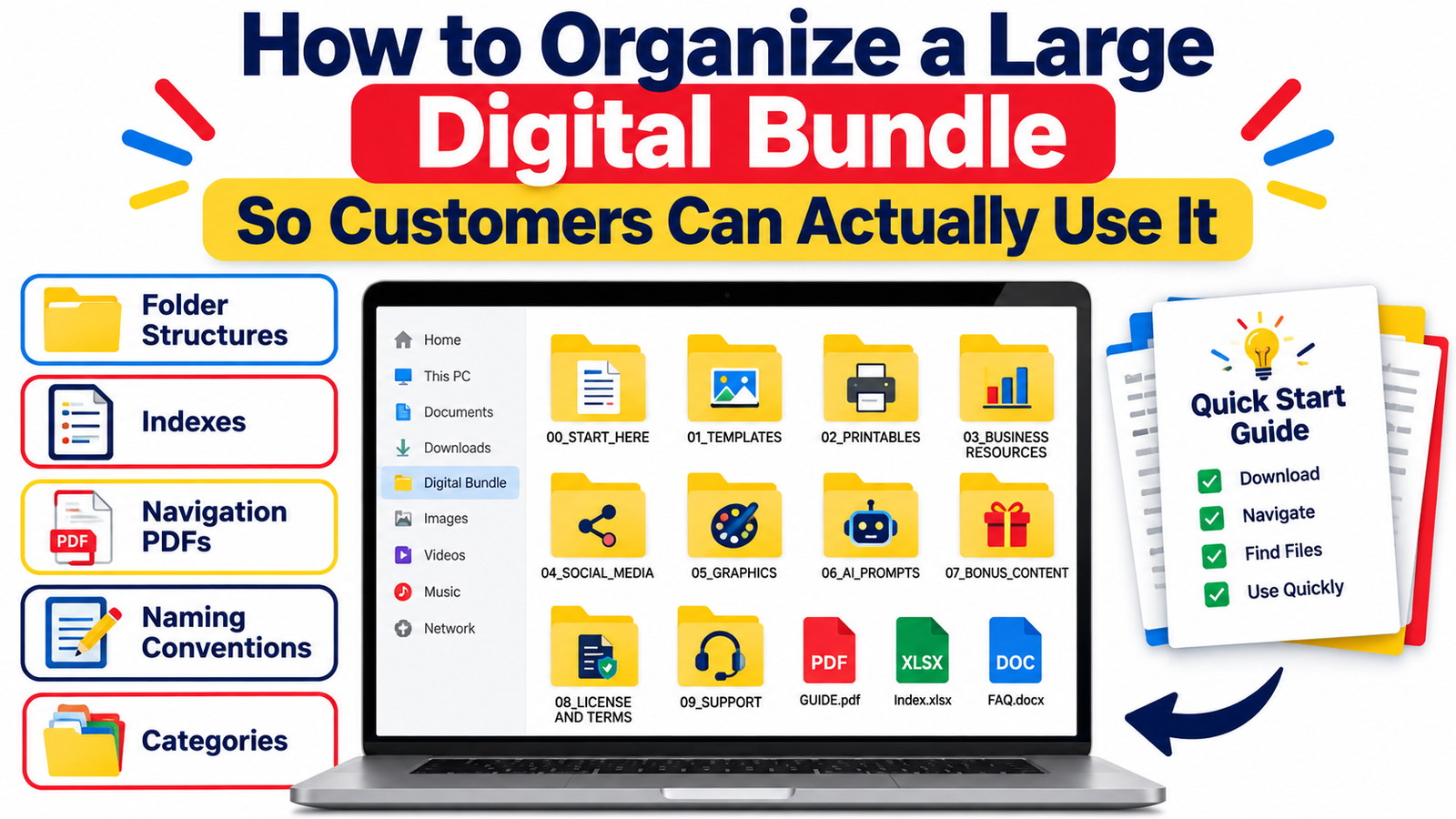
This guide explains how to organize digital products professionally using logical folder structures, master indexes, navigation PDFs, naming conventions, categories, search systems and quick-start guides.
Why Large Digital Bundles Become Difficult to Use
Customers do not experience your digital product the way you do.
You may know exactly where everything is because you collected, created and organized the files over several weeks or months.
Your buyer is seeing everything for the first time.
Imagine purchasing a bundle containing 15,000 resources and opening a folder containing:
- New Folder
- Final
- Final 2
- Files
- Templates New
- Templates Old
- Bonus
- Bonus Final
- Copy
- Miscellaneous
- Downloads
Even if the resources themselves are excellent, the presentation feels unfinished.
The buyer must spend time figuring out:
- what each folder contains
- which files they actually need
- which software opens each format
- where the best resources are located
- whether files are duplicates
- which products are editable
- which items are printable
- which license applies
- where bonus content is stored
- how to begin
That creates digital product friction.
A professionally organized bundle removes as much of that friction as possible.
The Real Goal of Digital Bundle Organization
The goal is not simply to create tidy folders.
The goal is to help customers move through four stages quickly:
Download → Understand → Find → Use
Every organizational decision should support one of those stages.
A strong digital product organization system answers the customer’s biggest questions immediately:
What did I receive?
Where should I start?
Where can I find a specific resource?
What program do I need?
How am I allowed to use these files?
When those answers are easy to find, even a massive bundle can feel manageable.
1. Create a Clear Top-Level Folder Structure
Start with the highest level of the download.
Do not force customers to open fifteen folders just to understand what they purchased.
A useful master structure could look like this:
00_START_HERE
01_TEMPLATES
02_PRINTABLES
03_BUSINESS_RESOURCES
04_SOCIAL_MEDIA
05_GRAPHICS
06_AI_PROMPTS
07_BONUS_CONTENT
08_LICENSE_AND_TERMS
This approach provides instant orientation.
The numbers also keep folders in the intended order across many operating systems and cloud-storage platforms.
Why “00_START_HERE” Works So Well
A START HERE folder is one of the simplest improvements you can make to a large digital download.
It can contain:
- Quick Start Guide
- Master Bundle Index
- How to Access Your Files
- Software Requirements
- License Information
- Frequently Asked Questions
- Support Information
Customers immediately know what to open first.
Instead of exploring thousands of files randomly, they receive instructions.
2. Organize Files by How Customers Think
Sellers sometimes organize products according to internal production processes.
Customers usually search differently.
For example, a creator might arrange design resources by:
- Batch 1
- Batch 2
- Designer A
- Designer B
- Upload March
- Upload April
Those categories may make sense internally, but they mean very little to buyers.
Customer-focused categories might instead be:
- Instagram Templates
- Pinterest Templates
- Facebook Graphics
- YouTube Thumbnails
- Email Marketing Templates
- Lead Magnet Templates
When organizing digital products, ask:
“What words would a customer use when looking for this?”
Those words should influence your folder names.
3. Build a Category Hierarchy
Large collections need more than one organizational level.
Consider a bundle containing thousands of printable resources.
Instead of:
PRINTABLES → 8,000 files
use:
PRINTABLES
- Budgeting
- Business
- Education
- Fitness
- Goal Setting
- Home Organization
- Kids Activities
- Meal Planning
- Personal Development
- Productivity
- Social Media
- Wellness
Then create subcategories where necessary.
For example:
Kids Activities
- Coloring Pages
- Flashcards
- Mazes
- Number Worksheets
- Reading Activities
- Tracing Worksheets
- Word Searches
This creates what could be called an information architecture for your digital product.
The larger your bundle becomes, the more valuable this hierarchy becomes.
4. Avoid Excessive Folder Depth
Organization is helpful.
Over-organization is frustrating.
Customers should not have to navigate something like:
Templates → Business → Marketing → Social Media → Instagram → Posts → Square → Editable → Canva → Version 2
before finding a file.
Try to keep frequently used resources within approximately two to four meaningful folder levels whenever practical.
If you need more detail, use searchable filenames or an index rather than endless nested folders.
5. Use Consistent File Naming Conventions
File names are one of the most overlooked areas of digital product file management.
Bad file names look like this:
- IMG0023.pdf
- file-final-new.pdf
- template57.pdf
- copy_of_design_9.png
- document(12).pdf
Better file names describe the resource clearly.
For example:
- Monthly-Budget-Planner-A4.pdf
- Instagram-Content-Calendar-Canva.pdf
- Kids-Alphabet-Tracing-Worksheets.pdf
- Small-Business-Invoice-Template.xlsx
- Pinterest-Marketing-Prompts.pdf
Customers should be able to understand a file without opening it.
6. Establish One Naming System for the Entire Bundle
Choose rules and follow them consistently.
For example:
Category-Product-Format-Version.ext
Example:
Finance-Monthly-Budget-Excel-V1.xlsx
Or:
Product_Name_Size_Format.ext
Example:
Weekly_Planner_A4_PDF.pdf
You do not necessarily need elaborate filenames.
Consistency matters more than complexity.
Decide whether you will use:
- hyphens
- underscores
- title case
- lowercase
- abbreviations
- version numbers
Then maintain the same system throughout the bundle.
7. Put Important Information in the Filename
When relevant, filenames can communicate important technical details.
Consider including:
- page size
- orientation
- software
- file format
- version
- language
- editable/non-editable status
For example:
Wedding-Planner-A4-Editable-Canva.pdf
Budget-Tracker-Google-Sheets.xlsx
Wall-Art-8×10-300DPI.jpg
Kids-Workbook-US-Letter-PDF.pdf
This reduces unnecessary file opening and improves usability.
8. Create a Master Bundle Index
A large digital bundle should ideally include a searchable master index.
Think of it as the table of contents for the entire product.
The index could contain columns such as:
| Category | Product | Format | Software | Location |
|---|---|---|---|---|
| Business | Invoice Template | XLSX | Excel | Business > Finance |
| Marketing | Content Calendar | PDF Reader | Marketing > Planning | |
| Social Media | Instagram Templates | Canva Link | Canva | Social Media > Instagram |
| Kids | Alphabet Worksheets | PDF Reader | Kids > Worksheets |
A bundle containing hundreds or thousands of resources becomes significantly easier to navigate when customers can search the index.
9. Make the Index Searchable
Do not treat your index only as a decorative document.
Make it useful.
Customers should ideally be able to search terms such as:
invoice
planner
Canva
worksheet
budget
fitness
and immediately discover where relevant files are stored.
You can provide the index in one or more formats:
- searchable PDF
- Excel workbook
- Google Sheet
- HTML directory
- CSV file
- Notion database
For very large bundles, an Excel or Google Sheets index can be especially useful because customers can search, sort and filter the collection.
10. Create a Navigation PDF
A navigation PDF is different from a basic instruction document.
It functions like a visual dashboard for the bundle.
For example, the first page might say:
Welcome to Your Digital Resource Library
Then provide sections such as:
Start Here
Business Resources
Canva Templates
Printables
Social Media
AI Prompts
Bonus Resources
Each section can explain what customers will find and, where technically appropriate, include clickable links.
This is particularly valuable when the bundle is stored in cloud storage.
Instead of sending customers directly into a giant Google Drive or Dropbox folder, you can provide a professionally designed access PDF.
11. Include a Quick-Start Guide
Many customers do not want to read a twenty-page manual before using a product.
Give them the shortest possible route to success.
A simple quick-start guide might contain:
Step 1: Download the Access File
Save the PDF or ZIP file to your computer.
Step 2: Open START HERE
Read the bundle overview and software requirements.
Step 3: Open the Master Index
Search or browse the categories.
Step 4: Select Your Resource
Follow the folder path shown in the index.
Step 5: Open or Edit the File
Use the recommended software listed in the guide.
That is enough to turn confusion into direction.
12. Separate Access Instructions From Product Content
Do not bury access instructions among thousands of files.
Your access instructions should appear near the top of the download.
Useful filenames include:
START-HERE.pdf
DOWNLOAD-INSTRUCTIONS.pdf
BUNDLE-INDEX.pdf
LICENSE.pdf
HELP-AND-FAQ.pdf
Because these files are clearly named, buyers can identify them immediately.
13. Explain File Formats Clearly
Not every customer understands the difference between:
- PNG
- JPG
- SVG
- EPS
- ZIP
- DOCX
- XLSX
- PSD
- AI
- CSV
A quick format guide can reduce support questions.
For example:
PDF: Suitable for reading and printing.
PNG: High-quality image with possible transparent background.
SVG: Scalable vector file often used with design and cutting software.
XLSX: Microsoft Excel spreadsheet.
DOCX: Microsoft Word document.
ZIP: Compressed folder that must usually be extracted before use.
Simple explanations can make your product much more beginner-friendly.
14. State Software Requirements Before Customers Open Files
Compatibility confusion creates unnecessary frustration.
Tell buyers which applications may be required.
For example:
Canva templates: Canva account required.
Excel spreadsheets: Microsoft Excel recommended.
Google Sheets templates: Google account required.
PSD files: Adobe Photoshop or compatible software required.
SVG files: Vector-compatible software or supported cutting/design application may be required.
Never assume every customer understands software compatibility.
15. Separate Editable and Ready-to-Use Files
If your bundle contains both editable and finished versions, separate them.
For example:
01_EDITABLE_TEMPLATES
02_PRINT_READY_PDF
03_PREVIEW_IMAGES
This prevents customers from accidentally opening a source file when they only wanted a printable version.
16. Separate File Formats When a Product Includes Many Versions
Suppose one graphic collection contains:
- SVG
- PNG
- JPG
- EPS
You can organize it like this:
Design Collection
- SVG
- PNG
- JPG
- EPS
Or, if customers usually search by design first:
Design 001
- Design-001.svg
- Design-001.png
- Design-001.jpg
- Design-001.eps
The better approach depends on your audience.
A crafter who primarily wants SVG files may prefer format-based folders.
A designer looking for a specific illustration may prefer product-based folders.
Organize around expected usage.
17. Use Meaningful Categories Instead of “Miscellaneous”
“Miscellaneous” tends to become a dumping ground.
If a folder becomes large enough to matter, it probably deserves a proper category.
Instead of:
Miscellaneous
consider:
- Reference Guides
- Bonus Templates
- Marketing Resources
- Checklists
- Worksheets
- Tutorials
- Branding Assets
Specific categories make the bundle easier to understand and easier to search.
18. Create a “Popular Resources” or “Start With These” Section
A large bundle can create choice overload.
Sometimes customers need recommendations rather than additional options.
Consider adding:
START WITH THESE 10 RESOURCES
For a business bundle, that could include:
- Business Planner
- Monthly Budget
- Content Calendar
- Invoice Template
- Customer Tracker
- Social Media Planner
- Marketing Checklist
- Sales Tracker
- Email Planner
- Goal Worksheet
Now the buyer does not need to explore 5,000 files on day one.
You have created an easy entry point.
19. Create Use-Case Collections
One file can belong conceptually to multiple use cases.
Instead of duplicating files unnecessarily, your navigation guide can recommend collections such as:
For New Business Owners
For Etsy Sellers
For Content Creators
For Teachers
For Freelancers
For Coaches
For Social Media Managers
These pathways make large digital bundles feel personalized without requiring separate products.
20. Avoid Unnecessary Duplicate Files
Duplicates increase bundle size but often reduce usability.
A customer does not benefit from finding the same worksheet in six folders unless there is a genuine reason.
Duplicates can:
- increase download size
- create uncertainty
- make updates harder
- increase storage requirements
- complicate indexes
When possible, keep one master copy and reference its location in your index.
21. Remove Temporary and Production Files
Before releasing your bundle, remove:
- drafts
- hidden system files
- temporary exports
- old versions
- internal notes
- unused previews
- duplicate ZIP archives
- test documents
Customers should receive the finished product, not your production workspace.
22. Keep Bonus Content Organized Separately
Bonus content can increase perceived value, but only when it remains understandable.
Use a dedicated folder:
07_BONUS_CONTENT
Inside, categorize the bonuses.
For example:
- Bonus eBooks
- Bonus Templates
- Bonus Courses
- Bonus Graphics
- Bonus Prompt Packs
Do not scatter bonuses randomly through the main product.
23. Make Licensing Easy to Find
If your bundle includes PLR, MRR, commercial-use or personal-use resources, licensing information should never be hidden.
Consider keeping:
LICENSE-AND-USAGE-RIGHTS.pdf
in both the START HERE folder and license folder.
Explain clearly:
- what buyers may do
- what buyers may not do
- whether modification is required
- whether resale is permitted
- whether attribution is required
- whether source files may be shared
- whether sublicensing is permitted
- whether marketplace restrictions apply
Avoid vague phrases such as “full rights” unless your actual license precisely defines those rights.
24. Include an FAQ Inside the Download
A good downloadable FAQ can answer recurring questions before customers contact you.
Topics might include:
- how to unzip files
- how to access Canva templates
- how to open spreadsheets
- printing recommendations
- software compatibility
- licensing
- missing downloads
- cloud access
- updates
- customer support
This is especially important for digital products sold internationally, where customers may use different devices, operating systems and software.
25. Design for Mobile Users Too
Many customers purchase digital products on smartphones.
They may receive the download link on their phone even when the actual files are better suited to a computer.
Tell them.
For example:
You can view this access guide on mobile, but downloading, extracting and editing the complete bundle is recommended on a desktop or laptop computer.
That single sentence can prevent considerable confusion.
26. Be Careful With Giant ZIP Files
Putting everything into one enormous ZIP archive may seem convenient for the seller but difficult for the customer.
Problems can include:
- slow downloads
- mobile storage limitations
- failed extraction
- corrupted downloads
- difficulty finding individual products
Large collections may be easier to manage as several logical downloads.
For example:
Download 1 – Business Templates
Download 2 – Marketing Resources
Download 3 – Social Media Templates
Download 4 – Graphics
Download 5 – Bonus Collection
Customers can then download only what they need.
27. Use Cloud Storage Carefully
Google Drive, Dropbox and similar systems can make large digital-product delivery easier.
But cloud storage alone does not solve organization problems.
A disorganized Drive folder is still a disorganized bundle.
Use:
- clear parent folders
- consistent names
- controlled permissions
- stable sharing links
- an index
- access instructions
- version management
Also explain whether customers should download the files or create copies in their own accounts.
28. Add a Version Number to the Bundle
Digital products change.
Files may be updated, corrected or expanded.
Adding a version number makes updates easier to manage.
For example:
Digital-Business-Bundle-v2.1
Your documentation could also include:
Bundle Version: 2.1
Last Updated: September 2026
Now customers and support staff can identify which version they are using.
29. Maintain an Update Log
For frequently updated products, include a simple changelog.
Example:
Version 2.1
- Added 50 social media templates
- Updated spreadsheet formulas
- Improved folder naming
- Added new quick-start guide
Version 2.0
- Reorganized marketing resources
- Added searchable bundle index
This gives customers confidence that changes are being managed systematically.
30. Test Your Bundle Like a New Customer
Before publishing, create a clean test environment.
Download the product exactly as your buyer would.
Then ask:
Can I understand the bundle within two minutes?
Can I find the START HERE guide?
Can I find a specific file quickly?
Are software requirements obvious?
Do all links work?
Can ZIP files be extracted?
Are filenames understandable?
Are there duplicates?
Are licenses easy to locate?
Does the folder structure work on both Windows and macOS?
Can a beginner understand the instructions?
This user-experience test can reveal problems that are invisible during production.
A Practical Digital Bundle Folder Structure
Here is a reusable structure for a large commercial digital bundle:
00_START_HERE
- Quick-Start-Guide.pdf
- Master-Bundle-Index.xlsx
- Bundle-Navigation.pdf
- Software-Requirements.pdf
01_BUSINESS
- Finance
- Planning
- Customer Management
- Operations
02_MARKETING
- Content Marketing
- Email Marketing
- Lead Generation
- Advertising
03_SOCIAL_MEDIA
- YouTube
04_PRINTABLES
- Planners
- Checklists
- Worksheets
- Trackers
05_GRAPHICS
- JPG
- PNG
- SVG
- Editable Files
06_AI_RESOURCES
- ChatGPT Prompts
- Marketing Prompts
- Business Prompts
- Content Prompts
07_BONUSES
- Bonus eBooks
- Bonus Templates
- Bonus Courses
08_LICENSE
- License.pdf
- Usage-Guide.pdf
09_SUPPORT
- FAQ.pdf
- Troubleshooting.pdf
- Contact-Information.pdf
This structure can be adapted to almost any large digital-product collection.
How Better Organization Can Improve the Customer Experience
Customers rarely praise a digital product because its folder structure is clever.
They notice something more important:
The product feels easy.
They can find what they need.
They understand what they purchased.
They can begin quickly.
They do not feel overwhelmed.
That ease contributes to the perceived professionalism of your brand.
Good organization may also reduce avoidable customer-service requests concerning access, compatibility, missing files and navigation.
Digital Bundle Organization Is Part of the Product
Do not think of file organization as something that happens after product creation.
Organization is part of the product itself.
If you sell 10,000 resources but customers can locate only 100 of them easily, much of the bundle’s practical value remains hidden.
A smaller library with excellent navigation can sometimes feel more useful than a much larger collection with no structure.
That is an important principle for anyone selling digital downloads:
Usable value matters more than raw file count.
How Digital Product Organization Can Support SEO and Sales
Your internal download folders are not normally what Google ranks.
However, the way you describe your organization on your public sales and article pages can help answer valuable customer searches.
Relevant search phrases can naturally include:
- how to organize digital products
- digital bundle organization
- digital product file management
- how to organize digital downloads
- digital product folder structure
- organize digital files for customers
- large digital bundle organization
- digital download instructions
- digital product navigation
- digital resource library organization
- file naming conventions for digital products
- digital product quick-start guide
- downloadable product customer experience
Use these terms when they accurately describe the content rather than repeating them artificially.
A useful article should satisfy the searcher’s real question instead of being written around a target keyword alone.
GEO Optimization: Make Important Answers Easy to Extract
Search experiences increasingly summarize information rather than requiring users to read every paragraph.
That makes clear question-and-answer formatting useful for both human readers and machine-generated search experiences.
Use concise statements such as:
What is the best way to organize a large digital bundle?
Create a clear top-level folder structure, divide resources into customer-friendly categories, use consistent filenames, provide a searchable master index and include a START HERE quick-start guide.
That answer is self-contained, easy to understand and directly resolves the query.
Your article should then provide deeper detail for readers who want it.
Google Discover Considerations
There is no guaranteed method for making an article appear in Google Discover.
However, Google recommends creating useful, timely or interesting content rather than relying on clickbait tactics.
For Discover presentation, use a compelling and representative high-quality image.
A strong featured image for this article could visually show:
- organized folders
- digital files
- category tabs
- a search or index icon
- a navigation PDF
- a clean digital dashboard
Use a descriptive headline rather than an exaggerated promise.
A suitable Discover-friendly title could be:
How to Organize a Large Digital Bundle Customers Can Actually Use
Another option:
Digital Bundle Organization: A Practical System for Managing Thousands of Files
For a featured image, a high-resolution landscape image at least 1200 pixels wide is a useful target for Discover eligibility. Google also recommends enabling large image previews where appropriate.
For article pages, Article or BlogPosting structured data can help Google understand information such as the article headline, image, publication date and author. Google recommends representative, crawlable images and supports providing multiple high-resolution image aspect ratios.
A Simple Pre-Publishing Checklist
Before selling a large digital bundle, confirm that you have:
- a START HERE folder
- a quick-start guide
- clearly named category folders
- consistent file names
- logical subcategories
- searchable master index
- navigation PDF
- file-format explanations
- software requirements
- license information
- FAQs
- support details
- functioning access links
- manageable download sizes
- version information
- backup copies
- tested ZIP files
- removed duplicates and temporary files
- tested the customer journey
If several of these are missing, improving organization may add more practical value than adding another thousand files.
Five Questions and Answers About Organizing Digital Bundles
1. What is the best folder structure for a large digital product bundle?
Start with a 00_START_HERE folder followed by numbered categories such as Templates, Printables, Business Resources, Graphics, Bonus Content, Licensing and Support. Add subfolders only where they make navigation easier. Organize resources using terms customers naturally understand.
2. Should a large digital bundle include a master index?
Yes. A searchable master index is extremely useful for large collections. It can list each resource, category, file format, software requirement and folder location. Excel, Google Sheets and searchable PDFs are practical options depending on the size of the bundle.
3. What should be included in a digital product quick-start guide?
Include a short explanation of what the customer received, where to begin, how to download or extract files, how to navigate the bundle, required software, where licensing information is located and how to obtain support.
4. How should digital product files be named?
Use descriptive and consistent filenames that explain what the resource is without requiring the customer to open it. For example, Monthly-Budget-Planner-A4.pdf is more useful than file023.pdf. Add software, size, version or format information when it helps the customer choose the correct file.
5. How do you make a massive digital bundle less overwhelming?
Give customers a guided starting point. Use a START HERE document, category-based folders, searchable index, recommended-resource list and use-case collections. Rather than asking customers to explore thousands of resources immediately, show them the fastest path to the products most likely to be useful.
Turn a Huge Collection Into a Usable Resource Library
The strongest digital bundles do not simply impress customers with numbers.
They help customers accomplish something.
A well-organized digital product library feels intentional from the first click.
The buyer knows where to begin.
The folders make sense.
The filenames explain themselves.
The index makes resources searchable.
The quick-start guide removes uncertainty.
The license explains usage.
The navigation system turns thousands of individual files into one coherent product.
If you already sell a large digital bundle, review it from the customer’s perspective before adding more content.
You may discover that the next major improvement is not another 5,000 files.
It is making the files you already provide dramatically easier to find, understand and use.
CTA: Organize Before You Expand
Before adding your next batch of digital products, create a START HERE folder, searchable master index and consistent naming system. Improving navigation can make your existing collection feel more professional, more accessible and more valuable without increasing the number of files at all.
Stay ahead with exclusive updates
Join our community. Get curated industry trends, actionable guides, and fresh resources delivered straight to your inbox.