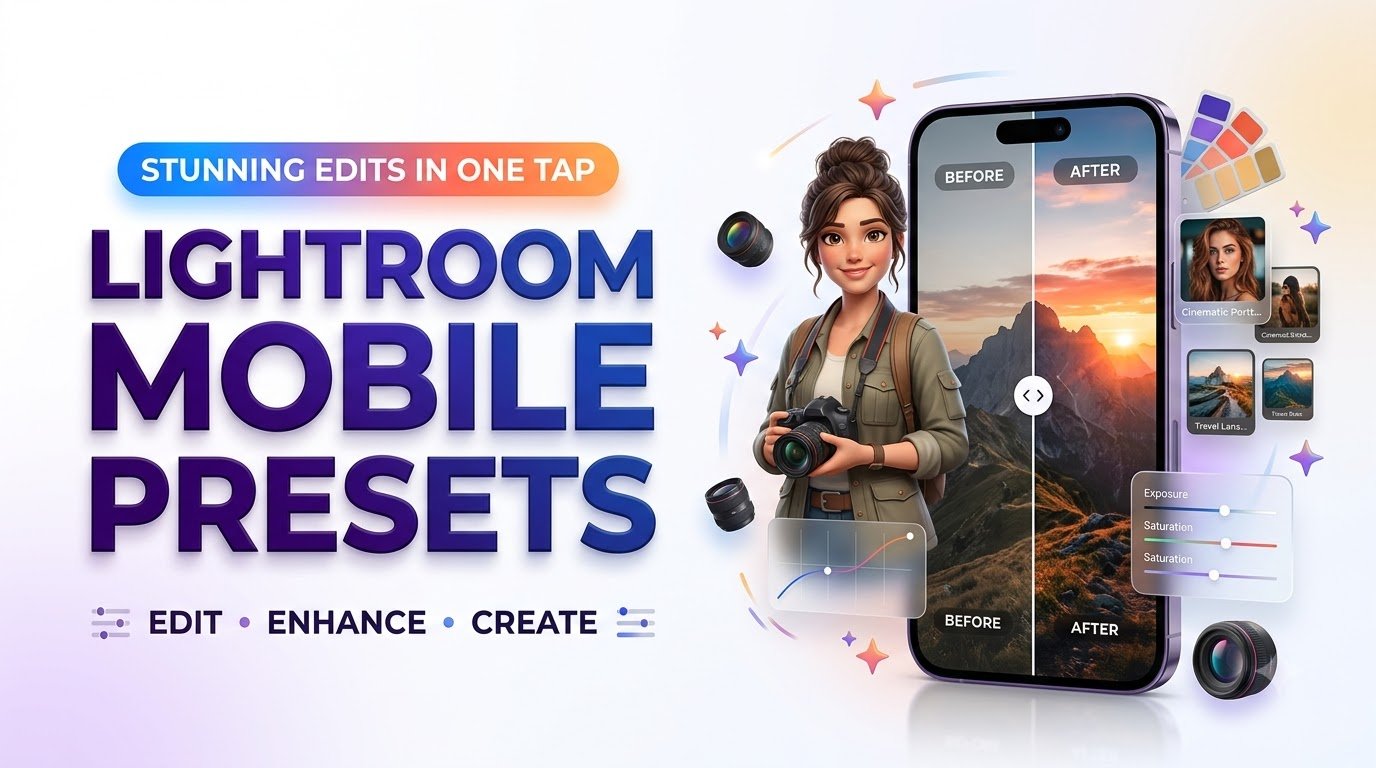
Discover Lightroom Mobile presets for iPhone and Android. Learn to install DNG and XMP presets, create stunning edits, and choose the right preset pack.
Lightroom Mobile Presets Pack: Transform Your Photos into Stunning Edits in One Tap
Discover how the right Lightroom presets can turn ordinary smartphone photos into beautiful, consistent images—without spending hours adjusting every setting.
Explore Lightroom Preset Packs → Learn How to Install PresetsYou take a beautiful photograph. The lighting feels right, the moment is perfect, and you are excited to share it. But when you open the picture on your phone, something is missing. The colors look flat. The shadows feel heavy. The image simply does not capture what you saw.
This is where a thoughtfully designed Lightroom Mobile Presets Pack becomes valuable. Instead of learning dozens of editing controls before sharing your photographs, you can start with a professionally styled combination of color, contrast, highlights, shadows, and tonal adjustments.
Whether you photograph travel adventures, weddings, food, products, portraits, or everyday moments, Lightroom mobile presets help you develop a consistent visual style.
The secret is not finding a filter that magically fixes everything. It is learning how to select a suitable preset, adjust it for the lighting, and keep your photographs looking natural.
What Is a Lightroom Mobile Presets Pack?
A Lightroom preset is a saved group of photo-editing adjustments. These settings can influence brightness, contrast, color balance, saturation, tone curves, sharpening, and other editing characteristics.
When you apply a preset, Lightroom uses those saved settings as a starting point for your photograph. You can then refine the result to suit the image.
A preset pack groups several related editing styles together. For example, a travel photography pack might feature warm sunsets, vibrant landscapes, soft beach tones, and muted city colors.
📷 Consistent Colors
Keep your photographs visually connected across social media posts, websites, and photo albums.
⚡ Faster Editing
Reduce repetitive adjustments by starting with reusable settings instead of editing every image from scratch.
🎨 Creative Freedom
Experiment with cinematic, vintage, minimalist, moody, and colorful looks.
📱 Mobile Convenience
Edit photographs using your phone without needing a complicated desktop workflow.
Think of a preset as a recipe. It provides the foundation, but the final result depends on the ingredients: your photograph, lighting, camera, and creative choices.
Why Lightroom Mobile Preset Packs Are Worth Exploring
1. Spend Less Time Editing and More Time Creating
Editing the same style of photograph repeatedly can become tedious. A preset reduces the number of adjustments you need to repeat.
For example, imagine editing twenty photographs from a weekend trip. Instead of rebuilding a warm cinematic look for every image, you can apply a matching preset and make individual exposure and white-balance corrections.
2. Build a Recognizable Instagram Aesthetic
A consistent visual identity makes a photo collection feel intentional. Lifestyle creators might prefer warm, creamy tones, while architectural photographers may favor clean whites and controlled contrast.
Using a consistent family of presets can make an Instagram profile or photography portfolio appear more cohesive without forcing every image to look identical.
3. Make Product Photography More Consistent
Small business owners often work with different lighting conditions and backgrounds. A consistent editing approach can help product images look more unified.
However, accurate product colors are important. Avoid dramatic presets that change the actual color of clothing, cosmetics, furniture, or other items customers expect to match the listing.
4. Learn Editing by Studying Preset Settings
Presets can be educational tools. Apply one to a sample photograph and examine the changes in the editing panels.
Notice what happens to highlights, contrast, color temperature, and individual color channels. Over time, you can understand how different adjustments contribute to a recognizable style.
10 Popular Lightroom Mobile Preset Styles
The best Lightroom preset depends on your subject, the lighting, and the mood you want to communicate. These are ten useful styles to explore when comparing or building a preset collection.
| Preset Style | Visual Appearance | Best For |
|---|---|---|
| Golden Hour | Warm highlights and soft contrast | Sunsets, portraits, outdoor lifestyle |
| Moody Cinematic | Deep shadows and subdued color | Street photography and storytelling |
| Clean Minimalist | Bright whites and restrained saturation | Products, interiors, personal brands |
| Vintage Film | Muted tones and gentle grain | Travel journals and nostalgic portraits |
| Pastel Dream | Soft pinks, pale blues, delicate tones | Fashion, lifestyle, spring photography |
| Tropical Vibrance | Rich blues and vibrant greens | Beaches, vacations, landscape imagery |
| Editorial Portrait | Balanced skin tones and polished contrast | Portraits, fashion, personal branding |
| Urban Night | Cool shadows and dramatic lights | City streets and evening photography |
| Wedding Romance | Soft highlights and natural warmth | Engagements, weddings, celebrations |
| Black & White | Monochrome tones and intentional contrast | Portraits, architecture, documentary photos |
How to Choose the Best Lightroom Mobile Presets Pack
Buying presets should not feel like guessing. A well-made pack should explain what its presets do, who they are designed for, and how to install them.
Match the Pack to Your Photography
If you mostly photograph people, prioritize skin-tone accuracy and natural contrast. If you enjoy landscapes, look for controlled skies, greens, and vibrant but realistic colors.
Look for Genuine Before-and-After Examples
The most useful product previews show how presets affect different lighting situations. Look for several examples rather than one heavily retouched promotional image.
Check File Format and Compatibility
Lightroom Mobile can work with preset workflows involving XMP and DNG files. The exact installation experience can depend on the file type and current application version.
Before purchasing, check whether the seller provides a clear installation guide for your device.
Understand What You Are Actually Buying
- Number of distinct presets included
- Supported preset formats
- iPhone and Android installation instructions
- Examples showing realistic editing results
- Personal and commercial usage rights
- Customer support and update policy
- Refund terms for digital purchases
How to Install Lightroom Mobile Presets on iPhone and Android
Adobe Lightroom offers preset import features for mobile devices. The following instructions summarize the current Adobe-supported workflows.
📱 Method 1: Import XMP Presets
- Download your preset files to your device.
- Extract the ZIP folder if necessary.
- Open Adobe Lightroom on mobile.
- Select a photograph.
- Open the Presets panel.
- Find the Import Presets option in the panel menu.
- Select your compatible preset file.
- Open Yours and find the imported preset group.
Menu placement can vary between iOS, Android, and app versions.
🎨 Method 2: Install DNG Presets
- Download and extract the DNG files.
- Import a DNG file into Lightroom.
- Open the imported DNG photograph.
- Choose Create Preset from the options menu.
- Enter a descriptive preset name.
- Select or create a preset group.
- Choose the settings you want to save.
- Save the preset for future use.
Repeat when necessary for additional DNG presets.
Adobe advises extracting compressed preset folders before importing. A ZIP archive generally should not be treated as an individual preset file.
For the most current screenshots and precise menu locations, consult Adobe’s official documentation: Import and Export Lightroom Mobile Presets .
For DNG-specific setup, refer to Adobe’s DNG Preset Installation Guide .
How to Get Beautiful Results from Lightroom Mobile Presets
Applying a preset is the beginning of your edit, not necessarily the end.
Step 1: Choose a Well-Exposed Photograph
Start with an image that has usable detail in important highlights and shadows. A preset cannot restore detail that was never captured.
Step 2: Select the Right Editing Style
Use a brighter style for airy lifestyle photography, a softer color grade for portraits, or a darker cinematic look for dramatic storytelling.
Step 3: Adjust the Preset Amount
Lightroom includes an Amount control for supported preset adjustments. Lowering the intensity can produce a more natural-looking result.
This is especially useful when a preset adds too much contrast or changes the colors more than intended.
Step 4: Correct Exposure and White Balance
Two images taken in different lighting conditions rarely need identical brightness and temperature settings. Adjust exposure and white balance to suit each photograph.
Step 5: Protect Natural Skin Tones
For portrait photography, check the face before judging the background. If the subject’s skin becomes unnaturally orange, gray, or magenta, fine-tune the temperature, tint, and relevant color controls.
Step 6: Compare the Original and Edited Image
Ask whether the preset improves the subject, atmosphere, and visual story. If your first impression is simply that the edit looks intense, reduce the adjustments.
Why a Lightroom Preset Might Not Look Good on Your Photos
A beautiful preset preview can look very different when applied to your own photographs. This does not automatically mean the preset is defective.
| Problem | Possible Cause | Practical Solution |
|---|---|---|
| Photo looks too dark | Preset designed for brighter exposure | Increase exposure and inspect shadows |
| Skin looks orange | Warm temperature or strong color adjustments | Refine temperature and orange saturation |
| Sky looks unnatural | Excessive color saturation | Adjust blue and aqua color channels |
| Photo looks washed out | Reduced contrast or lifted black tones | Refine contrast and tone curve |
| Preset will not import | ZIP archive, unsupported file, or import issue | Extract files and verify format and app version |
| Some adjustments are missing | Feature or device compatibility | Check supported Lightroom tools and subscription requirements |
What Should Be Included in a Good Lightroom Presets Pack?
A useful digital preset product should make both editing and installation simple.
📦 Organized Files
Clearly named presets, supported formats, and logical style categories.
📘 Setup Instructions
A practical guide explaining installation, usage, and troubleshooting.
🖼️ Honest Previews
Before-and-after images that demonstrate what buyers can reasonably expect.
🔐 Clear Licensing
Straightforward permission details covering personal use, client work, and redistribution.
Personal Use vs. Commercial Use
A license permitting commercial use of presets on your own photographs does not necessarily allow you to resell, redistribute, or share the preset files themselves.
If you create photographs for paying clients or commercial products, verify that your license permits the intended use.
Are Large Preset Bundles Worth Buying?
A bundle containing hundreds of presets can provide creative variety, but quantity does not guarantee quality.
Look for meaningful differences between preset styles and clear examples of how each style performs on real photographs.
How Different Creators Can Use Lightroom Presets
For Instagram Content Creators
Choose a small collection of coordinated presets that reflects your brand’s personality. Experiment with consistent warmth, contrast, and color relationships across your feed.
For Travel Photographers
Organize presets around different environments: beaches, mountains, historic cities, and nighttime scenes. Adjust each photograph to preserve the real atmosphere of the destination.
For Wedding Photographers
Work with gentle, natural preset styles that protect important details in wedding attire and maintain believable skin tones.
For Ecommerce Entrepreneurs
Use consistent lighting and restrained editing to make your product gallery look professional. Prioritize color accuracy over dramatic effects.
For Bloggers and Personal Brands
Select tones that complement your site’s typography, graphic design, and brand colors. A recognizable visual style can help your content feel consistent across platforms.
Create Your Own Lightroom Mobile Editing Workflow
A dependable workflow will often provide more long-term value than constantly downloading new presets.
- Choose three core preset styles for your photography.
- Organize presets into clearly named groups.
- Test each style on photographs with different lighting.
- Make exposure and white-balance corrections individually.
- Save useful custom adjustments as your own presets.
- Export finished images at suitable quality for their intended platform.
- Review your photographs periodically to refine your editing style.
The goal is not to make every photograph identical. It is to create consistency while allowing each image to retain its character.
Frequently Asked Questions About Lightroom Mobile Presets
1. What is a Lightroom Mobile Presets Pack?
It is a collection of saved editing settings that can be applied to photographs using Adobe Lightroom on compatible mobile devices. Presets help establish visual styles while still allowing manual adjustments.
2. Can I use Lightroom presets on iPhone and Android?
Yes. Lightroom Mobile supports preset workflows on compatible iOS and Android devices. Supported file types, available editing tools, and installation steps can vary by version, device, and subscription.
3. Do Lightroom presets work with every photo?
A preset can be applied to many photographs, but the results depend on lighting, exposure, white balance, and original image quality. Most images benefit from small adjustments after applying a preset.
4. What is the difference between DNG and XMP presets?
XMP files store editing settings used by compatible Lightroom preset workflows. DNG is a digital image format that can carry editing settings. A common DNG workflow involves importing the image and creating a user preset from its settings.
5. Are paid Lightroom presets worth the money?
They can be worthwhile when they offer useful styles, realistic previews, reliable installation instructions, and clear licensing. However, free presets and your own custom presets can also deliver excellent results.
5 Lightroom Mobile Presets Quiz Flashcards
Tap each flashcard to reveal its answer. Use these quick questions to review the most important lessons from this guide.
Flashcard 1: What does a Lightroom preset save?
Answer: A collection of photo-editing settings such as contrast, color, tone, and other supported adjustments.
Flashcard 2: Can one preset guarantee perfect results on every photo?
Answer: No. Exposure, lighting, white balance, and subject matter influence the result.
Flashcard 3: Which adjustment often helps when a preset looks too dark?
Answer: Exposure, followed by checking shadows and highlights.
Flashcard 4: What should you do before importing presets from a ZIP file?
Answer: Extract the archive and locate its compatible preset files.
Flashcard 5: Does commercial photo usage permission automatically allow preset resale?
Answer: No. Reselling or redistributing preset files requires explicit permission under the license.
Compliance, Licensing & Disclosure Note
Educational Information: This guide is provided for general educational and informational purposes. The editing examples and recommendations do not guarantee identical results for every photograph.
Trademark Disclosure: Adobe and Lightroom are trademarks of Adobe Inc. This article is independent editorial content and is not sponsored, endorsed, or officially affiliated with Adobe unless expressly disclosed.
Compatibility: Lightroom functionality, preset formats, supported devices, subscription requirements, and application interfaces may change. Verify current compatibility using official Adobe documentation before purchasing or installing third-party presets.
Digital Product Rights: Preset ownership does not necessarily grant resale or redistribution rights. Buyers and sellers should review the applicable product license and applicable laws.
Advertising and Affiliate Transparency: Any compensated recommendation, sponsored placement, or affiliate relationship should be disclosed clearly and conspicuously near the relevant recommendation or purchase link.
Results Disclaimer: Editing results vary with original photographs, lighting, camera settings, editing choices, and software compatibility. No particular aesthetic or business outcome is guaranteed.
Editorial Integrity: Product features, customer testimonials, ratings, and before-and-after examples should be genuine and verifiable. Illustrative marketing visuals should not be presented as actual product results.
Purchase Information: Product pages should accurately communicate included files, pricing, taxes where applicable, licensing, support, delivery methods, and refund terms before checkout.
Photography Rights and Privacy: Use only photographs you own or have permission to edit and publish. Obtain appropriate consent for recognizable subjects and protect sensitive image metadata when necessary.
What is a Lightroom Mobile Presets Pack?
It is a collection of saved photo-editing settings for Adobe Lightroom.
Can Lightroom presets be used on iPhone and Android?
Yes. Lightroom supports compatible preset workflows on both platforms.
Do Lightroom presets work with every photograph?
Results depend on lighting, exposure, and image quality.
What is the difference between DNG and XMP presets?
XMP stores editing settings. DNG is an image format that can carry editing settings.
Are paid Lightroom presets worth buying?
They can be valuable when they offer useful styles, support, and clear licensing.
Stay ahead with exclusive updates
Join our community. Get curated industry trends, actionable guides, and fresh resources delivered straight to your inbox.