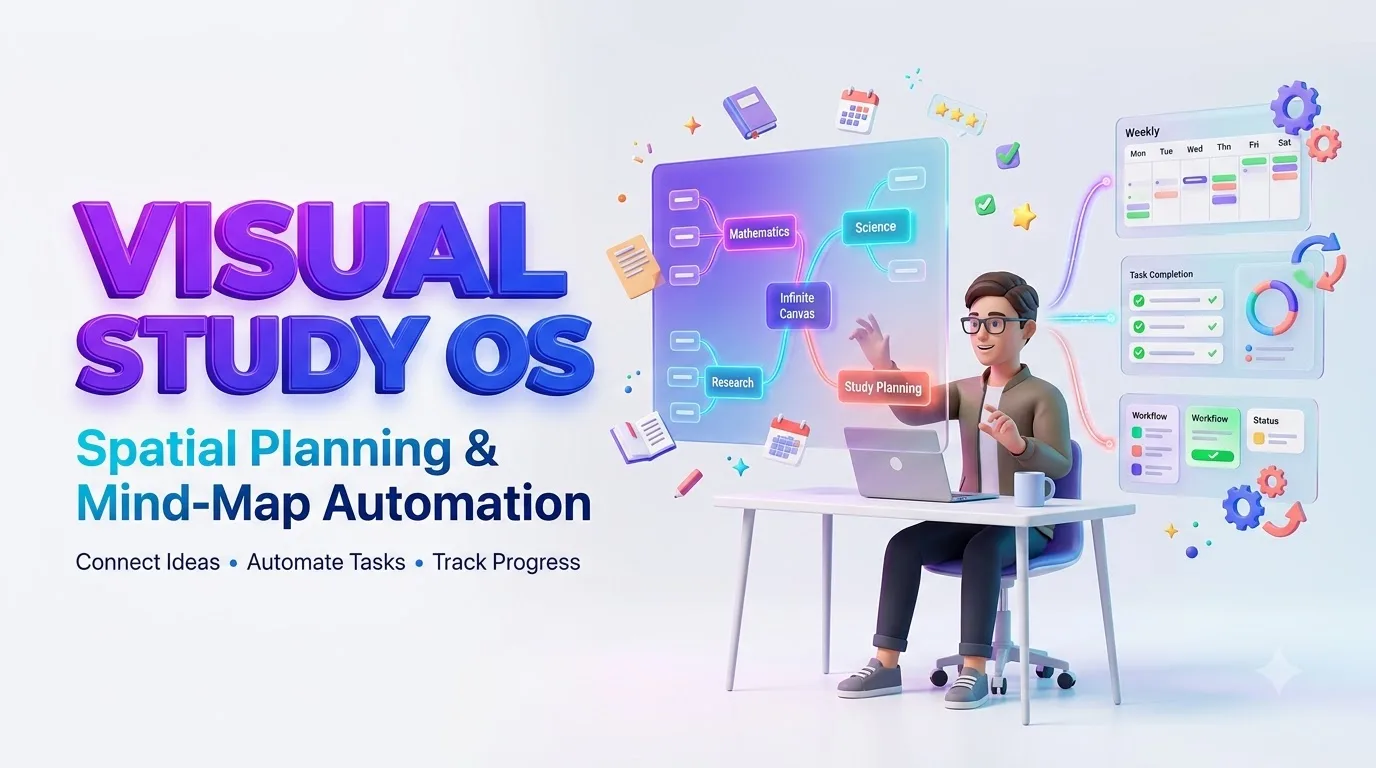
The Visual Thinker’s Study OS: Spatial Planning & Mind-Map Automation
Connect visual knowledge maps with smart task management to organize subjects, automate supported progress updates, and make everyday studying easier to manage.
ARTICLE SUMMARY & DESCRIPTIONArticle Summary
The Visual Thinker’s Study OS introduces a practical approach to organizing learning through spatial planning, connected mind maps, and automated task tracking. Using infinite canvas tools such as Miro or Obsidian Canvas, students can visualize subject relationships, connect actionable tasks to project-management systems, and monitor their study progress. The approach combines visual organization, reliable integrations, active recall, and spaced review to help learners identify priorities, manage deadlines, and focus on meaningful understanding rather than simply completing checklists.
Article Description
This practical guide explains how students who prefer spatial organization can transform scattered study notes into a connected visual learning workspace.
Readers learn how to build structured concept maps, connect individual topics with actionable study tasks, select suitable whiteboard and project-management tools, and configure supported progress-tracking workflows. It also explains the difference between a simple task link and genuine synchronization, including the additional configuration that some integrations require.
The article explores how visual dashboards, task-completion indicators, retrieval practice, and spaced review schedules can work together. It also addresses privacy, integration reliability, workflow maintenance, and the importance of measuring demonstrated knowledge separately from finished tasks.
Six Essential Points Covered
What Readers Will Take Away
A clear framework for building a visual study planner that connects what needs to be learned with what needs to be done. The aim is to make learning relationships easier to understand, study priorities easier to identify, and progress easier to review—without assuming that automation can replace actual learning.
Sources & Editorial References
The guide’s technical explanations are informed by official product documentation and established educational principles.
Compliance, Accuracy & Educational Information
Educational purpose: This content provides general information about visual study planning, productivity, and task automation. It does not guarantee better examination results, faster learning, or measurable productivity improvements.
Platform accuracy: Software capabilities, integrations, subscription requirements, and supported synchronization features may change. Native integrations and custom workflows have different technical requirements. Readers should verify current platform documentation before implementation.
Evidence and learning methods: Visual organization can help learners structure information, but a preference for visual tools does not establish a fixed learning style. Knowledge should be assessed through suitable practice, retrieval, and feedback—not task completion alone.
Privacy and AI: Protect sensitive study records, authentication credentials, and personal data. Review AI-generated educational material for accuracy and comply with applicable academic-integrity requirements.
Editorial transparency: Platform references are for informational comparison and do not imply sponsorship or endorsement. Publishers should provide genuine author information, editorial review details, and an accurate publication or update date.
The Visual Thinker’s Study OS: Spatial Planning & Mind-Map Automation
Turn scattered study notes into a connected learning map—and connect that map to a task system that can keep your progress visible as your work gets done.
Imagine opening your study planner and seeing your entire semester spread across a living, connected map. Biology branches into cells, genetics, and ecosystems. Mathematics connects algebra to calculus. Assignment deadlines sit beside the concepts they depend on. Finished tasks change their status, and the topics that still need practice become easier to spot.
You no longer need to mentally reconstruct the relationship between dozens of disconnected notes, calendar entries, and to-do lists. The structure of your work is visible.
That is the promise of a Visual Study Operating System, or Visual Study OS: a practical combination of an infinite canvas, a reliable project-management database, and carefully chosen automations.
This guide explains how to build one using Miro, Obsidian Canvas, Asana, Notion, or compatible automation tools. You will learn where native synchronization is available, where custom integration is necessary, and how to prevent an attractive mind map from becoming another form of procrastination.
Why a Traditional To-Do List Can Feel Like the Wrong Shape
A typical study planner gives you a sequence: read chapter four, solve ten equations, revise vocabulary, complete a quiz.
Those actions matter, but the list rarely explains how the ideas connect. It tells you what to do without showing the architecture of what you are learning.
Consider a student preparing for a university biology exam. Their notes might cover photosynthesis, cellular respiration, ATP, enzymes, and energy transfer. These topics appear in different sections of a textbook, but they are conceptually related.
A flat list hides those relationships. A concept map makes them visible.
The Linear Planner
Organizes actions primarily by order, deadline, or priority.
- Excellent for checklists
- Useful for calendar execution
- Less expressive about concept relationships
The Visual Study OS
Organizes study topics spatially while connecting them to executable tasks.
- Reveals dependencies
- Connects related subjects
- Separates understanding from task completion
Visual preference does not mean a fixed learning style
There is an important scientific distinction here. Some students prefer diagrams, spatial layouts, and visual organization. That preference can make a tool easier or more enjoyable to use.
However, research has not established that students learn best simply because teaching materials are matched to a fixed visual, auditory, or other learning-style label. A review by Pashler and colleagues found inadequate evidence for that matching hypothesis.
The stronger approach is to use visual organization to support proven learning behaviors: explaining relationships, practicing retrieval, receiving feedback, and revisiting difficult material.
A mind map should not merely look organized. It should make the next learning action easier.
The Three-Layer Architecture of an Automated Visual Study System
The most dependable design separates how work is displayed from where task data is stored.
How the Visual Study OS Works
Layer One: The spatial interface
This is the map you interact with. You create subject areas, connect related concepts, group projects, and position difficult topics beside their prerequisites.
Tools such as Miro and Obsidian Canvas make this possible through movable cards, connectors, spatial grouping, and linked resources.
Layer Two: The structured task database
This is where actionable information lives. Each real study task should have a stable identifier, a status, and the details required to complete it.
Use a project-management platform such as Asana or a structured Notion database, or an equivalent tracker that can be accessed reliably by your chosen integration.
Layer Three: The automation layer
This connects changes in task data to the visual interface. Depending on the tools, it may use a native integration, an automation service, an API, a local script, or a combination of these methods.
For example, finishing a task in the project manager could trigger a supported update to its corresponding visual card. If the tools do not have a native synchronization feature, the workflow needs to be built and tested.
What should every study task contain?
| Field | Purpose | Example |
|---|---|---|
| Task ID | Prevents duplicate or mismatched updates | BIO-014 |
| Topic | Connects task to a study concept | Cellular respiration |
| Action | Defines what to do | Complete recall quiz |
| Status | Shows workflow state | In progress |
| Due date | Supports scheduling | October 22 |
| Confidence | Records self-assessed understanding | 2 out of 5 |
| Review date | Supports spaced practice | October 25 |
| Canvas reference | Links task to its visual node | Node ID or card URL |
Miro vs. Obsidian Canvas: Which Is Better for Your Visual Study Planner?
Both can support spatial organization, but their integration models differ significantly.
Miro: Collaborative Visual Planning
Miro is especially useful when you want shared whiteboards, collaborative study planning, and direct connections to supported work-management platforms.
Its Asana integration supports synchronized task cards, subject to setup and permissions. Miro also offers REST APIs for custom integrations.
Best fit: Study groups, collaborative projects, and people who want hosted visual workflows.
Explore Miro →Obsidian Canvas: Connected Knowledge
Obsidian Canvas supports spatial arrangements of notes, files, links, and connections. Canvas data is stored in the open JSON Canvas format.
Its local-first architecture is attractive for personal knowledge organization, but automatic synchronization with an external task manager usually requires additional tooling.
Best fit: Independent learners, connected note systems, and people who value portable files.
Explore Obsidian Canvas →| Feature | Miro | Obsidian Canvas |
|---|---|---|
| Primary strength | Team whiteboarding and connected workflows | Spatial personal knowledge organization |
| Storage approach | Hosted collaborative workspace | Local vault and .canvas files |
| Mind-map creation | Visual cards, connectors, templates | Nodes, edges, linked notes, groups |
| Automation options | Native integrations, REST API, supported automation apps | Scripts, file-based workflows, community plugins, custom integrations |
| Progress synchronization | Available through selected integrations; varies by connector | Requires a configured external workflow for project-manager synchronization |
| Collaboration | Designed for shared boards | Primarily personal; sharing depends on setup |
| Recommended user | Collaborative learner | Knowledge-focused independent learner |
Feature access, integration permissions, pricing, and synchronization behavior can vary by plan and change over time. Confirm the current documentation before choosing a paid solution.
Three study-system configurations
Miro + Asana
Start with a small subject map and a task project. Use the supported Miro–Asana integration to bring selected tasks onto your canvas.
Advantage: A practical route to synchronized task cards without developing your own integration.
Obsidian Canvas + Structured Task Tracker
Build a locally stored knowledge map, maintain tasks in one structured system, and connect records using stable IDs and links.
Advantage: More control over notes and file ownership. External status updates need an additional integration.
Canvas + API + Automation Rules
Read task changes through an authorized API or webhook, map them to visual nodes, and update supported card data or .canvas files.
Advantage: Greater customization, with higher maintenance, security, and troubleshooting requirements.
How to Build Your Visual Study OS Step by Step
Begin with one subject, one visual map, and one task source. A small system that works reliably is more valuable than a complex setup that constantly breaks.
-
Define your study outcome
Start with a measurable goal: complete an exam syllabus, prepare a research paper, master a programming topic, or manage a semester project.
Example: “Prepare six biology units before my final exam and complete one practice assessment for each unit.”
-
Create your central canvas
Make a main node containing the subject or outcome. Place major study units around it.
Use positioning to convey meaning. Put foundational concepts toward the left, advanced applications toward the right, and review tasks below their associated subjects.
-
Break subjects into actionable nodes
A topic node labeled “Genetics” is useful for navigation, but it is not an actionable task.
Create specific actions such as “Explain Mendelian inheritance without notes” or “Complete 15 inheritance problems.”
-
Create a task record for every meaningful action
Add the task to Asana, Notion, or your selected task database. Assign an ID, status, priority, and due date.
Avoid creating separate tasks for tiny actions that do not need tracking.
-
Connect the visual node to its task
Use supported task cards where native integration exists. Otherwise, maintain a stable mapping between the canvas node and the external task ID.
Links alone provide navigation. They do not automatically create status synchronization.
-
Design a consistent status system
Use descriptive statuses rather than relying entirely on colors.
Not started In progress Completed Review due
-
Configure your automation
Select a supported native integration or connect task updates through an automation service, API, or local script.
Test a single record before enabling updates across an entire board.
-
Add knowledge checks
Require a quick retrieval quiz, explanation, or practice exercise before marking a learning objective as mastered.
Completing an administrative task is not the same as demonstrating understanding.
-
Introduce review scheduling
Give each topic a next-review date. A simple starting schedule might review material after one, three, seven, and fourteen days.
These are configurable example intervals, not a universal learning formula. Adjust based on difficulty and quiz performance.
-
Review and simplify your system weekly
Check overdue work, unresolved concepts, duplicate tasks, broken integrations, and outdated connections.
Delete visual clutter that no longer helps you make decisions.
How to create a usable Obsidian Canvas structure
In Obsidian, enable the Canvas core plugin if necessary and create a new canvas. Add note cards, text cards, and grouped areas for your subjects.
Use connectors to label relationships such as “requires,” “explains,” “contrasts with,” and “applies to.” This turns the board into a concept map rather than a collection of floating notes.
Obsidian stores Canvas data in .canvas files using the JSON Canvas format. That makes it possible for suitable scripts and tools to work with nodes and connections programmatically.
This diagram illustrates organization, not the literal JSON syntax of a Canvas file. If you write automation code, follow the JSON Canvas specification and preserve valid node IDs and edges.
Three Automation Recipes That Make the Mind Map Useful
Recipe 1: Update visual task cards from your project manager
Goal: When a student completes an Asana task, the corresponding connected card in Miro reflects the task’s updated information.
Recommended route: Use Miro’s supported Asana integration rather than attempting to imitate two-way synchronization with generic cards.
In a Miro board, open the integrations area, find Asana, connect your authorized account, and import the relevant task cards. Follow the current account and team permission requirements.
Import only the tasks you need for your learning map. Place those cards near their conceptual topics, and test a task-status update in Asana.
Miro’s documented Asana integration supports synchronized task data. However, simply creating a regular Miro card with Zapier is different: Miro’s Zapier documentation states that this connector uses Miro as an action and does not automatically synchronize subsequent task changes.
Recipe 2: Generate review tasks after completing a learning objective
Goal: Schedule the next practice session when a topic passes its knowledge check.
Suggested flow: Verified mastery → Review date calculated → Review task created → Linked topic flagged as scheduled.
Build an automation in your task system that checks for a specific learning status, such as “Mastered—Review Pending,” rather than triggering on every completed administrative task.
The automation then creates or updates the corresponding review record with a unique identifier so repeated events do not create duplicate reminders.
The map should distinguish a topic that has been studied from one that has been recalled successfully. This distinction makes the dashboard more informative.
Recipe 3: Synchronize Obsidian Canvas through a custom workflow
Goal: Update a local Canvas representation when external task data changes.
Suggested architecture: Authorized task API → Change detector → Task-to-node mapping → Validated .canvas update → Obsidian display.
Because Obsidian Canvas is file-based, a technically capable user can build a controlled process that reads external task data and updates matching Canvas nodes.
For example, a local script might read the status of task BIO-014 and update text or visual information for the mapped Canvas node. The script must preserve the rest of the file, handle simultaneous edits safely, and validate its output.
This is a custom integration pattern, not a claim that Obsidian Canvas ships with universal two-way project-manager synchronization.
Reusable automation logic
Common integration mistakes and how to avoid them
- Assuming every connection is live synchronization: A copied link, embedded card, or one-time Zap may not update automatically.
- Editing task status in multiple independent systems: This creates conflicts unless a supported bidirectional workflow exists.
- Automating before deciding what the data means: Define statuses and mastery rules first.
- Using colors without text labels: Add explicit status text for accessibility and clarity.
- Importing everything: Include only actionable tasks and meaningful concepts.
- Ignoring failures: Keep logs, test retries, and schedule a periodic synchronization check.
A Seven-Day Example: Preparing for a Biology Exam
Consider a hypothetical college student, Maya, preparing for a biology assessment. She has several topics to learn and prefers viewing connections rather than managing a long, isolated checklist.
Instead of creating an elaborate board for the entire semester, she starts with three interconnected areas: cell structure, energy transfer, and genetics.
| Day | Visual Activity | Action in Task Manager |
|---|---|---|
| 1 | Build the core concept map | Create six study tasks |
| 2 | Connect organelles to cell functions | Complete cell-structure practice |
| 3 | Link ATP, respiration, and energy | Complete recall questions |
| 4 | Connect genes, DNA, and inheritance | Work through genetics exercises |
| 5 | Rebuild the map from memory | Record gaps and review needs |
| 6 | Focus on weak topic connections | Complete targeted practice |
| 7 | Review the full knowledge map | Complete a mixed-topic quiz |
At the end of the week, Maya sees which actions are complete, which topics need review, and how the subject areas relate.
The automation reduces the administrative burden. The actual learning still comes from explanations, practice questions, and correcting errors.
This is an illustrative scenario, not a reported user testimonial or independently measured outcome.
What should count as real progress?
A completed checkbox does not always mean that a topic has been mastered. A useful dashboard tracks at least two separate dimensions.
Task Completion
Measures whether planned study actions have been performed.
Knowledge Readiness
Measures performance on retrieval questions, explanations, or practice assessments.
The values above are illustrative. No live student data is being collected or synchronized by this article.
In the example, task completion is 75%, while the practice assessment score is 60%. The two measures answer different questions. Together, they help identify whether the student should continue with new material or spend time strengthening understanding.
How to Use Mind Maps for Active Recall and Spaced Practice
Mind mapping is most valuable when it becomes a way to reason about material rather than simply decorate it.
Research provides a useful perspective. A 2011 study by Karpicke and Blunt found that retrieval practice produced greater learning gains than elaborative studying with concept mapping in the studied conditions. Other research has also examined concept mapping itself as a retrieval-based activity.
This suggests a strong practical combination: use the canvas to understand relationships, then reconstruct those relationships from memory.
The four-part learning cycle
Explore
Read, observe, and identify the important concepts.
Connect
Build labeled relationships between concepts.
Retrieve
Hide the notes and rebuild your explanation or diagram.
Verify
Check errors and record which relationships need attention.
Schedule
Create the next appropriate review task.
Improve
Use quiz results to update future practice priorities.
A useful AI-assisted workflow
An AI assistant can help draft an initial topic outline, suggest possible relationships, and generate practice questions. However, those suggestions should be checked against course materials and authoritative sources.
For instance, a student could use this prompt:
The student can then approve, edit, and organize the generated material. AI should help construct a draft, not silently decide what the student has mastered.
The Hidden Cost of Over-Automating Your Study Planner
Every automation creates another component to maintain. That cost is worthwhile only when the automation prevents more repetitive work than it introduces.
For a student with ten tasks, manual updates might be faster than building an API integration. For a study group coordinating a large syllabus across many deadlines, supported automatic synchronization may be considerably more useful.
Before adding a new automation, ask three questions:
- Does this action happen frequently enough to justify automation?
- Will the resulting information improve a real study decision?
- Can the workflow recover safely when an integration fails?
What should stay manual?
Conceptual understanding, self-evaluation, selecting meaningful relationships, and deciding whether an explanation is correct should remain under human control.
Automation works best for supporting tasks: creating reminders, updating supported status indicators, copying stable metadata, and finding work that needs attention.
Your Visual Study OS Starter Template
You can recreate the following structure in your chosen platform without purchasing a template or connecting an API.
Zone A: Knowledge Map
Main subjects, concepts, prerequisites, relationships, and resource links.
Zone B: This Week
Current study actions, upcoming deadlines, and priority tasks.
Zone C: Review Queue
Previously studied topics that require active recall or additional practice.
Zone D: Progress Dashboard
Completed work, knowledge-check performance, and unresolved learning gaps.
Copy this task-record structure
Use this structure as the starting point for a task database, a spreadsheet, or a custom integration. Adapt the fields to the capabilities of the tools you select.
A 15-minute weekly maintenance routine
- Check completed tasks against actual learning outcomes.
- Identify three topics needing the most attention.
- Remove duplicated or abandoned nodes.
- Confirm that connected task status information is accurate.
- Schedule your next set of retrieval-practice sessions.
Build a Study System You Can Actually Maintain
You do not need a complicated dashboard to become a more organized learner. Start with one subject, five meaningful concepts, and a handful of actionable tasks.
Once that structure feels natural, add the simplest automation that solves a real problem. Expand only when the workflow proves useful.
Use the Free Starter Blueprint → Compare the Tools →For a downloadable or premium template, add your own verified product page or checkout link before publishing a sales offer.
Is an Automated Visual Study Planner Worth Paying For?
Before subscribing to multiple productivity platforms, identify what you genuinely need.
| Your Situation | Suggested Starting Approach | What to Evaluate Before Paying |
|---|---|---|
| Solo student with a small workload | Obsidian Canvas plus simple task tracking | Whether manual updates already meet your needs |
| Study group sharing deadlines | Miro plus an authorized task integration | Collaborator access, plan limits, synchronization features |
| Student managing multiple long-term projects | Structured task database with linked visual maps | Database properties, recurring tasks, export options |
| Advanced user building a custom system | Canvas plus approved APIs and integration scripts | Security, rate limits, maintenance, and reliability |
A premium template may save setup work if it includes a clearly documented structure, practical instructions, compatibility information, and a support policy. It is less valuable if it promises automation without specifying the required integrations or ongoing services.
Buyer checklist: Look for a functional preview, clear system requirements, update history, instructions for customization, stated limitations, transparent licensing, and an explicit refund policy.
Do not purchase software solely because it claims to match your “visual learning style.” Evaluate it by whether it improves your ability to plan, study, recall, and complete meaningful work.
Five Questions About Visual Study Planning and Mind-Map Automation
1. What is a Visual Study OS?
A Visual Study OS is a study-planning framework that combines spatial concept maps, task-management records, and optional automation. It helps learners see relationships between subjects while tracking their actual study actions and review requirements.
2. Can Miro automatically update study-task progress?
Miro offers supported integrations that can synchronize task information with selected project-management services, including Asana. However, not every connection offers live or two-way updates. Generic card creation through Zapier, for example, does not automatically guarantee future synchronization.
3. Can Obsidian Canvas synchronize automatically with Notion or Asana?
It can participate in a custom integration because Canvas files use an open JSON format. However, universal built-in bidirectional synchronization with those task managers should not be assumed. A compatible plugin, script, integration service, or API workflow must be configured and tested.
4. Do visual mind maps improve exam performance?
Concept mapping can help learners organize and relate ideas. Research also supports active retrieval practice, which is why combining mind maps with self-testing is preferable to simply viewing a completed diagram. Individual results depend on the subject, implementation, and study behavior.
5. What is the best automated study planner for beginners?
The best starting choice depends on whether you prioritize collaboration, connected notes, or task automation. A small Miro–Asana workflow may suit shared task planning, while Obsidian Canvas may be attractive for locally stored, interconnected notes. Start with basic functionality before adding paid automation tools.
Five Quiz Flashcards: Test Your Visual Study OS Knowledge
Try answering each question from memory before expanding the card. Compare your response with the suggested answer, then revisit any concept you missed.
Flashcard 1 · What are the three main layers of a Visual Study OS?
Why it matters: Keeping these responsibilities separate prevents confusion between a diagram and the underlying task data.
Flashcard 2 · Why is a unique task ID important for automation?
Why it matters: Stable identifiers reduce duplicate records and incorrect updates.
Flashcard 3 · Does adding a task URL to a mind map automatically synchronize its status?
Why it matters: Live updates require a supported native integration or an appropriately configured workflow.
Flashcard 4 · Which learning activity can make a concept map more than a visual reference?
Why it matters: This uses retrieval practice rather than passive review alone.
Flashcard 5 · Should completing a study task automatically mean the topic is mastered?
Why it matters: Actual understanding should be assessed through explanations, practice, or appropriate knowledge checks.
These five flashcards use native HTML disclosure controls. They can reveal answers without JavaScript. They do not store scores or send results to an external service.
Sources and Further Learning
This guide combines platform documentation with published educational research. Product functionality and integration details should be checked again when you implement a workflow.
- Miro — Asana Integration. Official instructions on connecting and using synchronized Asana task cards in Miro. Read the documentation.
- Miro — Zapier Integration. Documents supported automation behavior and synchronization limitations. Read the documentation.
- Miro Developers — REST API. Official information about connecting Miro with external systems. Explore the API.
- Obsidian — Canvas. Official product documentation describing visual note organization and the JSON Canvas format. Explore Obsidian Canvas.
- JSON Canvas Specification. Open specification for portable infinite-canvas data. View the specification.
- Pashler et al. (2008). Learning Styles: Concepts and Evidence. Psychological Science in the Public Interest. View the research.
- Karpicke and Blunt (2011). Retrieval Practice Produces More Learning Than Elaborative Studying With Concept Mapping. Science. View the research.
- Concept Mapping Research (2024). Concept Mapping: Increased Potential as a Retrieval-Based Task. View the research.
- Google Search Central — Google Discover. Official guidance on useful content, imagery, and eligibility. Read Google’s guidance.
Compliance, Accuracy & Educational Use Note
Educational purpose: This article is an informational guide, not personalized academic, technical, psychological, legal, or financial advice. Study techniques and software workflows may perform differently depending on a student’s needs, institution, and technological environment.
Accuracy and platform limitations: Integration availability, functionality, permissions, pricing, APIs, and product names may change. Confirm details through each platform’s current official documentation before subscribing, connecting accounts, or running automation.
Data privacy: Protect student records, assignment information, API credentials, and private notes. Follow your institution’s rules and applicable privacy obligations, including any requirements that may apply to educational records or minors. Avoid submitting sensitive information to AI services without appropriate authorization.
AI transparency: AI-assisted outlines and study questions can contain mistakes. Verify generated content against reliable educational materials. Do not use AI-generated work in ways that violate academic-integrity policies.
Commercial transparency: Miro, Obsidian, Asana, and other tools are mentioned for educational comparison. Product inclusion is not an endorsement, paid partnership, or performance guarantee. Disclose any affiliate relationships or sponsorships if subsequently added to this article.
Results disclaimer: No improvement in grades, study time, traffic, earnings, or search rankings is guaranteed. Illustrative scenarios and progress values are examples, not independently verified customer results.
Editorial review: The article references official platform resources and educational research available at the time of preparation. Publishers should add a verified author or reviewer identity, appropriate editorial credentials, and a genuine review date before publication.
The Visual Thinker’s Study OS: 10 Essential Ideas for Spatial Planning & Mind-Map Automation
Discover how infinite canvas whiteboards, intelligent task databases, knowledge maps, and carefully designed automations can work together to make studying clearer, more connected, and easier to manage.
2026 Editorial Edition · 10 Original Analyses · Practical Learning WorkflowsA traditional study planner tells you what comes next. A visual study system goes further: it shows how ideas belong together, which concepts depend on others, and where your next learning action fits into the bigger picture.
These ten concise editorial guides explore the technology and practical decisions behind a Visual Study Operating System. Each entry tackles a different problem, from choosing between Miro and Obsidian Canvas to connecting task records, scheduling review sessions, and avoiding unnecessary automation.
The aim is not to replace disciplined studying with an attractive dashboard. It is to give meaningful work a clear visual structure while reducing repetitive planning.
The Visual Study OS: Why Your Mind Map Needs a Task Management Engine
Imagine opening a digital study board where every major subject is visible at once. Mathematics occupies one cluster, biology another, and research assignments sit alongside the concepts they require. Colored connections show dependencies, while linked task records identify what has been completed and what still needs work.
This is the central idea behind a Visual Study Operating System: a framework that combines spatial learning with structured execution. It usually needs three components. First, a canvas displays relationships. Second, a task database stores actionable information such as status, ownership, and deadlines. Third, an integration layer moves supported updates between them.
The distinction is important because a mind map on its own does not automatically know whether you have completed an assignment. Likewise, a project-management database may accurately record progress without explaining why two concepts are related. The strongest system allows both views to complement each other.
For example, a biology topic called “Cellular Respiration” might connect to ATP, mitochondria, and energy transfer. Nearby, an associated study task asks the learner to explain the process without notes. When that task is completed in the connected task manager, its synchronized record can reflect the changed status on the canvas, provided the chosen integration supports that behavior.
Beyond Colorful Bubbles: How to Design a Mind Map That Actually Helps You Study
A busy mind map can look impressive while communicating very little. Students sometimes add dozens of floating shapes, arrows, and decorations without identifying which connections are academically meaningful. The result becomes difficult to navigate and even harder to review.
A better approach starts with a defined learning question. Rather than creating a central bubble labeled “Chemistry,” begin with something specific: “How do chemical reactions change energy?” Then create branches for reaction mechanisms, activation energy, catalysts, and reaction-rate factors.
Connections should describe relationships, not simply point toward nearby topics. A line labeled “influences” is more useful than an unexplained arrow. Likewise, “required before learning” provides a meaningful dependency that can inform the sequence of study tasks.
Separate knowledge nodes from action nodes. A knowledge node represents a concept; an action node describes something the student can complete and verify. For example, “Newton’s Second Law” is a concept, while “Solve five force-and-acceleration problems” is an action.
This distinction makes the canvas easier to automate because the task manager can track concrete activities while the map preserves conceptual relationships.
- Keep foundational ideas visually separate from advanced applications.
- Use text labels alongside colors to communicate status.
- Limit cross-connections to relationships worth remembering.
Miro + Asana: A Practical Route to Visual Task Synchronization
Miro is particularly useful for students who want collaborative whiteboards without giving up conventional task management. Its spacious canvas makes it possible to organize syllabus topics, research questions, group responsibilities, and project milestones in a shared environment.
Asana handles the structured execution side. Tasks can contain details such as deadlines, assignees, and completion information. Rather than copying all this information manually into ordinary whiteboard shapes, eligible users can use Miro’s dedicated Asana integration to bring synchronized task cards onto a board.
Miro’s documentation describes a two-way task integration that allows authorized users to interact with Asana task information from the Miro interface. However, access is subject to the relevant Miro plan, organizational licensing, and administrator permissions. Its documented enterprise integration should not be assumed to be included in every free or personal account.
A study group could organize each syllabus unit as a separate visual cluster and place related Asana tasks beside it. The shared board would then provide a conceptual overview, while Asana remains the structured work-management system.
One privacy consideration deserves attention: task data brought into a shared board may be visible to people who have access to that board. Students should confirm access controls before importing confidential assignment information.
Obsidian Canvas: The Local-First Alternative for Connected Study Maps
Some learners prefer keeping their notes in files they can organize and manage themselves. For them, Obsidian Canvas offers a compelling approach to spatial knowledge management. It supports movable cards, connected notes, external links, and grouped regions inside a virtually unlimited visual workspace.
Unlike a conventional online whiteboard, Obsidian Canvas stores the canvas structure in a .canvas file using the open JSON Canvas format. That means the layout and connections can be represented as structured data rather than existing only as an opaque visual interface.
This matters for technically inclined learners who want greater portability. A local script can potentially read a Canvas file, identify a mapped node, and update supported data after receiving task information from an external service.
There is a crucial limitation: the existence of a JSON format does not mean that Obsidian Canvas includes built-in two-way synchronization with Notion, Asana, or every other task manager. External synchronization generally requires a separate plugin, script, or configured integration.
For a student building a long-term knowledge library, this tradeoff may be worthwhile. The Canvas can become a reusable intellectual map rather than just a temporary assignment board. But a custom integration needs maintenance, reliable identifiers, file backups, and protection against simultaneous edits.
The Smart Study Database: How to Connect Topics, Tasks, Deadlines, and Review Dates
Behind a dependable visual planner is a structured record system. Without one, a student may complete an assignment, update its status in a separate app, and then forget to make the same change on the canvas. After a few days, the board is already out of date.
The solution is to establish a single source of truth for actionable work. That might be an Asana project, a Notion database, or another compatible task-management system. The important feature is not the brand; it is the ability to maintain consistent, identifiable records.
Each meaningful study task should include a stable ID, associated topic, action description, status, and due date where appropriate. Confidence scores, practice-test results, and next-review dates can be added when they help decision-making.
For example, task BIO-018 could refer to “Explain DNA replication without notes.” A matching canvas node stores the associated reference. When a supported integration receives a change to BIO-018, the correct visual record can be found without relying on a potentially duplicated task title.
That mapping also makes future extensions easier. A student might later add a weekly review dashboard or a filter showing only overdue concepts. Because the underlying data is structured, those views do not require manually rebuilding every relationship.
Zapier, APIs, and Native Integrations: What Really Makes a Mind Map Update Automatically?
Automation is often presented as a simple process: connect two apps, choose a trigger, and watch everything synchronize. In practice, there are important differences between creating a new visual card, updating an existing task, and maintaining continuous two-way synchronization.
A native integration is generally the easiest starting point when the required features are explicitly supported. A workflow automation service can respond to an event and perform an action in another application. A custom API integration provides greater flexibility but introduces additional technical responsibilities.
Miro’s documented Zapier connector is a useful example of the distinction. It supports creating Miro card actions from triggers in other services, but Miro’s documentation states that those Zapier-created cards do not automatically synchronize later source-card changes. A one-time card creation should not be presented as live task synchronization.
For genuinely continuous updates, the workflow needs a supported update method, a stable mapping between records, and a way to receive or detect changes. Developers should also prevent duplicate processing, protect credentials, and plan for temporary API failures.
The most sustainable choice is usually the least complex integration that reliably delivers the specific behavior the learner needs. Creating reminders may require only a simple automation. Building a fully synchronized knowledge dashboard demands considerably more care.
Mind Maps Meet Spaced Repetition: Turning Visual Organization into Long-Term Learning
A beautiful diagram is not evidence that its contents have been remembered. A student may understand a relationship while looking at a map yet struggle to explain it independently during an exam.
That is why a Visual Study OS should support more than visual organization. It can also connect concept maps to two well-studied learning activities: retrieval practice and spaced practice.
Retrieval practice asks learners to bring information to mind without simply rereading it. Spaced practice revisits material across multiple sessions instead of concentrating all exposure into one study period. Educational research supports both as useful approaches across different learning contexts.
A practical visual workflow begins with the completed concept map. The student then hides the explanatory notes and attempts to reconstruct the important relationships from memory. Incorrect or missing connections are recorded for further practice.
The task system can schedule the next review after a configurable interval. A simple starter policy might use reviews after one, three, and seven days, adjusted according to performance. These intervals are examples rather than a universally optimal schedule.
The most important rule is to base progress on evidence of recall, not just the amount of time spent looking at the canvas. This transforms the mind map from a passive reference into an active learning tool.
The Visual Progress Dashboard: Track Completed Tasks Without Confusing Activity with Mastery
Many digital planners measure productivity primarily by counting completed checkboxes. That can be helpful for tracking assignments, but it is not enough to describe learning. Finishing eight reading tasks does not necessarily mean that the student can answer questions about the material.
A more informative Visual Study OS separates task completion from knowledge readiness. Task completion answers, “How much of the planned work have I performed?” Knowledge readiness asks, “How well can I demonstrate understanding?”
Suppose a student finishes six of eight scheduled activities. Their task completion rate is 75%. During a practice test, however, they answer only 12 of 20 questions correctly. Their assessment score is 60%. These numbers represent different measurements and should not be treated as interchangeable.
The visual canvas can represent these dimensions through separate labels, card properties, and supported progress indicators. A topic could be marked “Study Completed” while also showing “Review Required” because recent retrieval practice revealed gaps.
More advanced dashboards might track overdue assignments, the number of review tasks due this week, confidence ratings, and performance by subject. The aim should not be to collect every possible metric. Each measurement should answer a specific question that helps the learner choose their next action.
AI Mind-Map Generation: A Faster Starting Point That Still Needs Human Verification
Creating a large knowledge map from scratch can become a major organizational task. AI assistants can help by turning a student-provided syllabus, outline, or verified set of notes into a proposed concept structure.
A useful prompt might ask for core topics, their prerequisites, possible conceptual relationships, and a set of self-testing activities. The result can then be reviewed and converted into cards or notes using the import features available in the chosen platform.
This is not necessarily a fully automatic integration. Generating a structured outline is different from creating valid Canvas files, writing tasks into a database, and synchronizing progress. Each of those steps requires suitable tool support and authorization.
AI-generated relationships can also be inaccurate. A model may invent a prerequisite, overlook a central concept, or produce a confident explanation that conflicts with the course material. Students should check the proposed structure against the syllabus, textbooks, instructor guidance, and reliable references before adopting it.
One of the most useful applications is generating practice questions from approved study material. A learner can answer those questions independently and use the results to identify weak areas on the visual map.
For privacy and academic integrity, avoid uploading confidential educational records or submitting AI-generated assignments in ways that violate institutional policies.
Build or Buy? Choosing a Sustainable Visual Study System Without Overpaying or Over-Automating
The most elaborate study workspace is not necessarily the most useful one. Students can spend considerable time comparing templates, configuring integrations, and refining decorative details before completing a single meaningful study session.
A sensible buying decision begins with the actual problem. Is the learner struggling to understand relationships between concepts? Are deadlines being missed? Is task status repeatedly copied between apps? Different difficulties call for different solutions.
For independent learners who mainly want connected notes, a local-first Canvas approach may provide sufficient value without advanced automation. A collaborative group may benefit more from a shared whiteboard and authorized task integration. Students coordinating numerous long-term projects may gain the most from a structured task database with a smaller visual layer.
Before paying for a premium template or subscription, check compatibility, included features, data export options, privacy policies, integration permissions, recurring costs, and the availability of setup instructions. A template advertised as “automated” should clearly explain which actions actually update automatically and which require additional services.
Adoption should also be gradual. Build a pilot with one subject and a handful of tasks. Use it during normal study sessions, inspect any synchronization problems, and expand only if it genuinely reduces friction.
Ultimately, the right system is the one a student can maintain while keeping most of their attention on learning.
Your First Practical Visual Study OS
Begin with a single course. Place its major concepts on a canvas, create a structured task for each important action, and assign stable identifiers. Add one supported connection between the task records and the canvas. Once that works, introduce review scheduling and progress measurements.
What matters most: the system should make it easier to identify which concept needs attention, what action should happen next, and whether previous study has resulted in actual understanding.
One Connected Map. One Reliable Task System. A Clearer Learning Workflow.
The Visual Thinker’s Study OS is not a particular app or an automatic guarantee of improved grades. It is a design approach: place ideas where their relationships become visible, manage actions in a dependable database, and synchronize only the information that your tools can support accurately.
Use Miro for collaborative spatial workflows, Obsidian Canvas for connected personal notes, a task manager for structured execution, and retrieval practice to assess understanding. Add AI and automation where they meaningfully reduce repetitive effort.
A useful study system does not merely show how much work you have finished. It helps you see what you understand, what remains uncertain, and where to focus next.
Visualize Relationships Track Real Progress Practice Retrieval Automate ResponsiblySources & Further Learning
These independent editorial analyses draw on official documentation and published learning research. The links below provide starting points for verifying technical capabilities and exploring the educational evidence.
- Miro Help Center — Getting Started With Asana Integration
- Miro Help Center — Asana Integration Overview and Availability
- Miro Help Center — Zapier Capabilities and Limitations
- Obsidian Help — Canvas Documentation
- JSON Canvas — Open Canvas Data Format
- Nature Reviews Psychology — Spacing and Retrieval Practice
- Karpicke & Blunt — Retrieval Practice and Concept Mapping
Compliance, Editorial Integrity & Educational Disclaimer
Original editorial content: All ten entries are newly written analyses and practical explanations. They are not reproduced reviews, copied product descriptions, proprietary excerpts, or representations of independent customer testimonials.
Educational information: The material is intended for general educational and productivity guidance. It does not constitute personalized academic, professional, psychological, legal, or financial advice. Learning outcomes depend on the individual, subject, and implementation.
Platform accuracy: Software features, API behavior, subscription requirements, third-party integrations, synchronization capabilities, and pricing can change. Verify all material claims against current official documentation before purchasing or implementing a workflow.
Privacy and security: Protect private study records, student information, and account credentials. Use appropriate authorization, access controls, encrypted connections, backups, and institution-approved services when connecting educational tools. Do not expose API secrets in public page code.
Academic integrity and AI: AI-generated study material may contain factual errors. Verify important claims and comply with applicable school or university policies. AI assistance should support learning rather than replace required independent work.
Commercial independence: References to Miro, Asana, Obsidian, Notion, Zapier, and related technologies are provided for identification and educational comparison. No sponsorship, affiliate relationship, product certification, or endorsement is implied. Publishers must disclose any commercial relationships they subsequently introduce.
Results and performance: No specific improvement in grades, time savings, productivity, search visibility, earnings, or exam performance is promised. Any examples are explanatory illustrations rather than independently measured results.
Publication review: Publishers should verify the accuracy of current product information and add genuine author credentials, review responsibility, and an accurate last-reviewed date before publication.
The Visual Thinker’s Study OS · Editorial Learning Collection · Updated October 2026
The Visual Thinker’s Study OS Quiz
Test how well you understand spatial study planning, mind maps, Obsidian Canvas, Miro integrations, and automated progress tracking.
Loading question…
Quiz Complete
This quiz is original educational content designed to reinforce concepts about visual planning, knowledge mapping, and study automation. Software integrations, subscription requirements, permissions, and synchronization capabilities may change. Verify current functionality through official platform documentation before setting up a workflow.
Results reflect answers to these ten questions, not a validated measurement of academic ability or guaranteed study performance. No personal information, quiz scores, or answers are transmitted to an external server by this code. Results remain in the current browser session and are reset when the page reloads.
AI-assisted study methods should be checked against reliable educational resources and institutional academic-integrity policies. API credentials and confidential student information must not be exposed in public WordPress code.
Compliance & Educational Use Note
Educational purpose: This checklist provides general guidance for building a visual study-planning workflow. It does not guarantee higher grades, improved memory, reduced study time, or particular academic results.
Platform limitations: Miro, Obsidian Canvas, Asana, Notion, and other services have different integration capabilities, licensing requirements, and permissions. A linked canvas card does not automatically provide real-time or two-way synchronization. Verify supported functionality through current official documentation.
Privacy and security: Protect private student records, credentials, and confidential notes. Do not store secret API keys in publicly visible WordPress code. Use authorized integrations and appropriate backups before modifying project records or canvas files.
Learning accuracy: A task marked complete does not necessarily mean the corresponding subject has been mastered. Use practice questions, explanations, and appropriate assessments to evaluate understanding. Visual organization can be helpful without assuming that learners belong to fixed learning-style categories.
Progress data: Checklist selections are stored locally in the visitor's browser when browser storage is available. This widget does not send completion information to an external server. Browser settings or clearing site data may erase saved progress.
Independent content: The checklist is original educational material. Referenced platforms are identified for informational purposes; no sponsorship, affiliation, or endorsement is implied.
📝 Key Takeaways & Action Notes
Jot down insights, next steps, or thoughts from this post. Your notes save automatically in your browser.
- What is the #1 breakthrough insight you took away today?
- What is one concrete action you will take in the next 24 hours?
- What questions or ideas do you want to research further?
Stay ahead with exclusive updates
Join our community. Get curated industry trends, actionable guides, and fresh resources delivered straight to your inbox.