canva-craft-ai/" class="auto-link">Canva Craft AI review for 2026: what Canva’s new image model does well, where it slips, and how to make mockups, social posts and product covers step by step.
Canva Craft AI for faster marketing graphics
Make product mockups, social posts and digital-product covers with Canva’s new image model, one step at a time.
Quick summary: Canva Craft AI
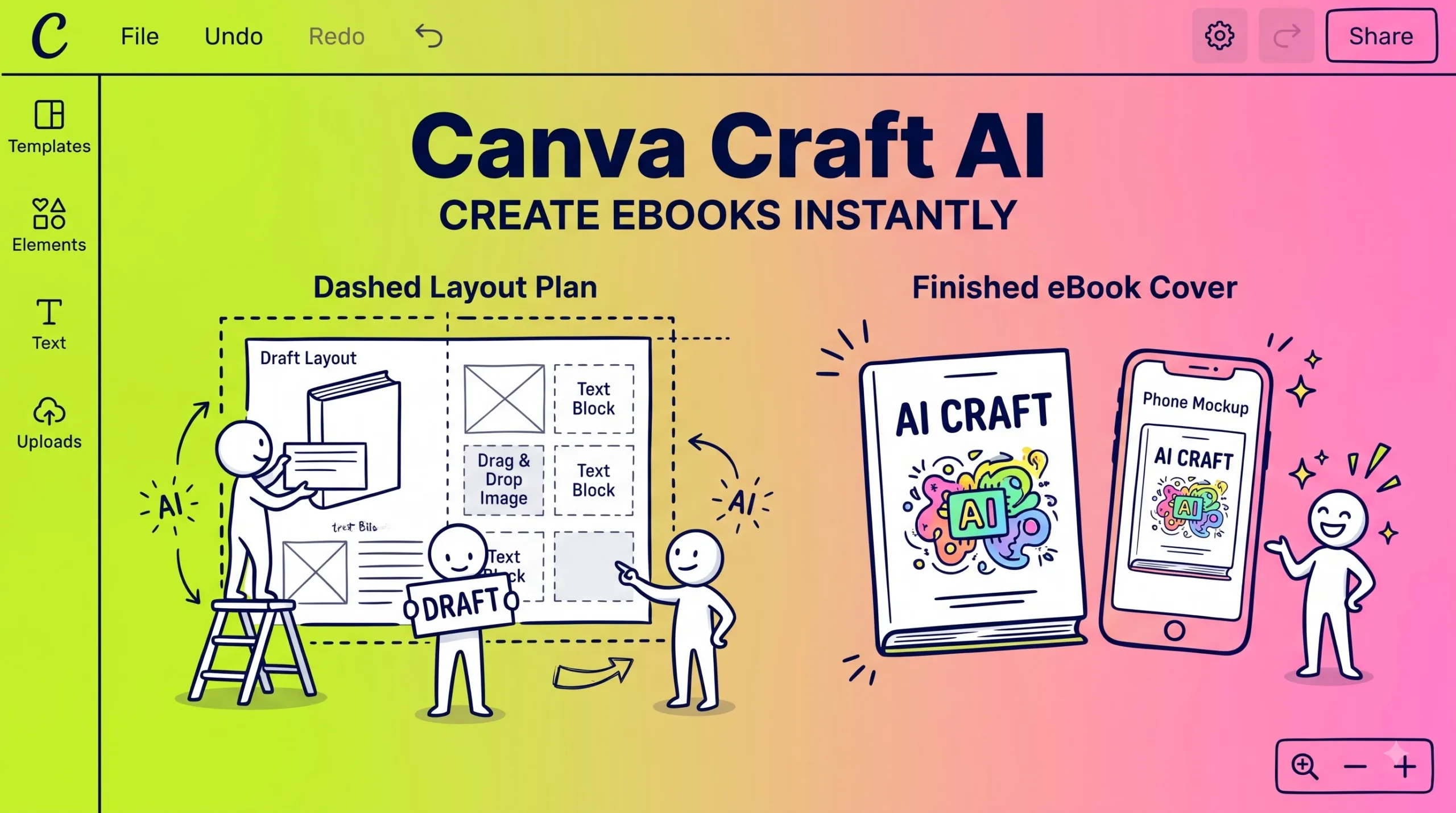
Canva Craft AI is Canva’s first in-house image model, announced on October 22, 2026, and it writes a layout plan before it renders a single pixel. Canva Research trained it on human-made templates like posters and social posts, so it aims at design work with readable text. You’ll find it in Dream Lab, in the lower-left side panel of the Canva editor. It renders up to 2K, offers more than 30 aspect ratios and can write in-image text in 55 languages. Every Canva user can try it. Generated images can go through Magic Layers, which splits them into editable pieces. The catch is that Canva hasn’t said how many Craft images each plan includes, and Canva lists fine print and technical drawings as weak spots. This guide shows how to use Craft for product mockups, social media graphics and digital-product covers, plus mistakes to avoid, a comparison table, FAQs and a quiz.
What Canva Craft AI actually is
Canva Craft AI is an image generation model trained from scratch by Canva Research, a lab of more than 160 AI researchers and engineers. Before Craft, Dream Lab leaned on partner models, starting with Phoenix from Leonardo.ai when Dream Lab launched in October 2024. Craft is Canva’s own.
The model works in two stages. A planning model reads your prompt first and decides which elements appear, where they sit, how big they are and what text goes where, and then a separate rendering model draws that plan at up to 2K. Most image generators go straight from prompt to pixels, which is why their headlines often come out as almost-words.
Say you sell a $12 meal-planner template. You could prompt: square Instagram post, headline “Plan a week of dinners in 10 minutes” at the top, open planner on a kitchen counter, warm light, empty strip at the bottom. Craft has three things to place there, and the plan step is what keeps the headline from landing on top of the planner.
I’d read the leaderboard claims with some care. Canva says Craft debuted fourth on DesignArena behind three OpenAI models, but that ranking comes from Canva’s own announcement, and public leaderboards shift from week to week.
Canva AI design in 2026: the reason Craft matters now
Craft keeps image generation inside the design you’re already editing. The old routine for a Canva user went like this: generate an image in another tool, download it, upload it to Canva, then rebuild the headline on top because the AI text came out garbled. Now the image, its layout and its text arrive in one place.
Magic Layers is the other half. It splits a generated image into separate, editable elements, and Canva says Craft images split faster and more accurately than before. If the headline has one wrong letter, you delete that layer and type the real words in your brand font.
Developers can already call Craft through the Canva API. Canva also plans to bring it to chatbots like ChatGPT and Gemini through its MCP server, and it’s building two cheaper versions called Craft-fast and Craft-ultrafast.
For a small seller, the math is simple. If you launch one digital product a month and need 10 to 15 graphics for each launch, cutting the trips between tools gives you back real hours.
AI marketing graphics you can build with Craft
These four jobs cover most of what a creator or small shop needs. Each tab has a prompt pattern you can copy and adjust.
Product mockups with Canva Craft AI
Craft can draw a believable scene around a product, like a notebook on a desk or a phone in someone’s hand. It can’t know what your real product screen looks like, so it will invent one. I’d use Craft for the scene and Canva’s Mockups app or a frame for the real screenshot, because a made-up screen on a sales page misleads buyers.
- Describe surface, angle and light, for example “top-down on a light oak desk, soft window light”.
- Ask for a blank screen or blank cover so you can drop your own artwork in later.
- Keep one product per image, since extra products usually crowd the frame.
- Run Magic Layers on the result to pull the product away from the background.
Social media graphics that fit the feed
Choose the aspect ratio before you write the prompt. Square works for most feeds, 4:5 fills more of a phone screen on Instagram, and 9:16 suits Stories and Reels covers.
- Put your headline in quotes and name its position, such as “headline centered at the top”.
- If your brand font matters more than speed, ask for the background only and add the text in Canva yourself.
Covers for Gumroad listings and ebooks
Covers are where Craft’s layout planning earns its keep. A cover needs a title, a subtitle, a product visual and breathing room, which matches the template-style work Craft was trained on. Gumroad uses a wide cover image and a square thumbnail, so plan both from one design and check Gumroad’s help center for the current pixel sizes.
- Write the title exactly as it appears on your product page.
- Add “large title, high contrast, readable at small size” to the prompt.
- Generate the wide cover first, then resize a copy into the square thumbnail.
- Shrink the thumbnail to about 150 pixels wide; if the title disappears, cut words.
- Keep the visual honest, so a planner cover shows a planner and not a bonus you don’t include.
Ad banners in several sizes
Ads need one message in several shapes. Craft offers more than 30 preset ratios plus custom sizes, so you can prompt the same layout for a wide banner and a tall placement instead of stretching one image.
- Keep one offer per banner, such as “Budget template, $9”.
- Check each ad platform’s current rules on text and claims before you run anything.
- Save the winning prompt in a note so the next campaign starts from it.
Craft features worth knowing before you start
Six features shape how you’ll use Craft day to day. For marketing graphics, the first and fourth matter most.
Plan, then render
A planning model decides placement and text first, and a second model draws the image. Canva says this keeps objects and words where your prompt put them. Expect a short wait while it plans.
2K output, 30+ ratios
Images go up to 2K. Pick a preset ratio or set a custom one.
Text in 55 languages
You can prompt in any language, and Craft can write in-image text in 55 languages. Have a native speaker check anything you publish in a language you don’t read.
Magic Layers handoff
Generated images can be split into separate elements with Magic Layers. This is the feature I’d test first. Fixing one wrong letter on its own layer takes seconds, while fixing it inside a flat image means regenerating and hoping the next version is better.
Canva Shield coverage
Craft falls under Canva Shield, which screens prompts and results and lets people report harmful content.
API and what’s coming
Developers can call Craft through the Canva API. Craft-fast and Craft-ultrafast are announced with no release date yet.
Make your first cover in Canva Dream Lab
This walkthrough builds a Gumroad cover for a made-up $9 budget template called “Pocket Budget”. Swap in your own product as you go.
- Open Dream Lab: In the Canva editor, click Dream Lab in the lower-left side panel to open the image prompt box.
- Write a planned prompt: Name the format, the layout, the exact text and the mood. Example: wide cover, title “Pocket Budget” large at the top left, subtitle “A 1-page monthly budget” below it, a printed budget sheet and a pencil on a mint desk at the right, flat colors, high contrast.
- Pick the settings: Under the prompt box, choose a style and an aspect ratio, and make sure Canva Craft is the selected model. A 16:9 ratio is a sensible start for a wide cover.
- Generate and choose by layout: Make a few versions and pick the one with the best composition, even if its text has a flaw. I’d fix text afterward instead of regenerating ten times, because every generation uses part of your monthly AI allowance.
- Proof every letter: Zoom in and read the title letter by letter. AI text errors are often one swapped or doubled letter that your eye skips at normal size.
- Fix it with Magic Layers: Open the image in a design and run Magic Layers. Delete any text layer with an error and retype it with Canva’s text tool in your brand font.
- Export and test small: Download a PNG, resize a copy into a square thumbnail, and look at both on your phone. If the title is hard to read at thumbnail size, shorten it.
🚀 Need a product to put on that cover?
Browse Gumroad for templates and tools, or see the ready-made digital products in our store.
Canva Craft vs other ways to make graphics in Canva
Craft is one of several image options inside Canva. Your pick depends on how much control you need over text and whether the image must show your real product.
| Option | Best for | Text control | Watch out for |
|---|---|---|---|
| Canva Craft in Dream Lab | Scenes, posters and covers from a prompt | Good for short headlines | Uses AI allowance; weak on fine print |
| Craft plus Magic Layers | Generated designs you want to edit | High, once text sits on its own layer | Some cleanup after splitting |
| Mockups app | Your real screenshot or cover on a device | Full, since it’s your artwork | Fewer scene choices than a prompt |
| Template plus your photo | Brand-consistent series | Full | Slower for one-off ideas |
Templates still have a place. My pick for most sellers is Craft for the scene plus Magic Layers for the text, because it keeps typos fixable without throwing away a good layout, but if your brand fonts must match exactly every time, a template wins. Plans and AI limits change, so check Canva’s pricing page before you decide.
Common Canva Craft mistakes and quick fixes
Most problems with Craft come from skipped checks, not from the model. These six show up again and again with AI image tools.
- Publishing unproofed text: A cover that says “Pockt Budget” looks careless. Read every title at 200% zoom before you export.
- Writing vague prompts: “Make a nice cover” leaves the plan step guessing. Name the format, the text, its position and the mood.
- Asking for fine print: Ingredient lists, legal lines and tiny captions are the weak spot Canva names itself. Generate without them and add small text in Canva.
- Using brands you don’t own: Prompts that copy real logos or branded products can cause trouble on a sales page. Describe generic items instead.
- Burning your AI allowance: Thirty near-identical generations eat a month’s budget fast. Change one detail per attempt.
- Leaving invented screens on mockups: Swap in your real screenshot with the Mockups app or a frame.
Canva Craft AI FAQ
Is Canva Craft free to use?
Where is Canva Craft in Canva?
Can Canva Craft write readable text in images?
Can I sell products that use Canva Craft images?
Does Canva Craft have an API?
Is Canva Craft better than ChatGPT for images?
What are Craft-fast and Craft-ultrafast?
Test yourself: Canva Craft quiz
Ten quick questions. Tap each one to see the answer.
1. Who built Canva Craft?
- OpenAI
- Canva Research
2. When did Canva announce Craft?
- October 22, 2026
- June 1, 2026
- January 2025
3. Where do you open Craft in Canva?
- Brand Kit
- Dream Lab
- Canva Docs
4. What does Craft do before it renders?
- Plans the layout
- Downloads stock photos
- Prints a proof
5. What is Craft’s maximum resolution?
- 720p
- 2K
- 8K
6. In how many languages can Craft write in-image text?
- 12
- 55
- 200
7. Which feature splits an image into editable parts?
- Magic Layers
- Brand Kit
- Whiteboard
8. Which job does Canva list as a weak spot?
- Portraits
- Fine print
- Nature scenes
9. What’s the best fix for a misspelled headline?
- Regenerate 20 times
- Retype it on its own layer
- Leave it
10. Which tool puts your real screenshot on a device?
- Mockups app
- A random Craft screen
- Canva Docs
Your first 48 hours with Canva Craft AI
Pick one product you already sell and remake its cover with Craft. Keep the old cover so you can compare them side by side on your phone. One honest comparison with your own product will tell you more than any leaderboard, and it only costs a few AI uses.
- Open Dream Lab: Generate one cover with your exact title in quotes.
- Fix the text: Run Magic Layers and retype any wrong word in your brand font.
- Test at thumbnail size: View both covers on your phone and keep the clearer one.
✨ Turn your new cover into a product page
Find digital products to learn from on Gumroad, or grab a ready-made template from our store.
Disclaimer & compliance note
Affiliate disclosure: Some links on this page are affiliate links, including Gumroad. If you buy through them, digitalideatool.com may earn a commission at no extra cost to you. We aren’t affiliated with Canva.
No guarantee: This guide is for information only and isn’t legal, financial or business advice. We can’t promise sales or results from any tool. Canva features, AI limits and terms change, so check Canva’s official pages before you rely on them.
AI use: This post was drafted with AI assistance, then reviewed and edited by a human for accuracy. Facts about Canva Craft come from Canva’s October 2026 announcement and launch coverage. Contact support@digitalideatool.com.
Please Note – Disclaimer
The content, news, topics, and ideas presented on this platform are collected and compiled from various websites, online sources, and digital platforms.
We do not guarantee the accuracy, authenticity, completeness, or reliability of any information, news, or sources mentioned.
Readers are strongly encouraged to independently verify all facts, claims, sources, and information through trusted and official channels before relying on or acting upon them.
This content is provided for general informational and educational purposes only.
✓ Reader Reminder: Always verify important information using trusted, authoritative, and official sources before making decisions or taking action.
📝 Key Takeaways & Action Notes
Jot down insights, next steps, or thoughts from this post. Your notes save automatically in your browser.
- What is the #1 breakthrough insight you took away today?
- What is one concrete action you will take in the next 24 hours?
- What questions or ideas do you want to research further?
Stay ahead with exclusive updates
Join our community. Get curated industry trends, actionable guides, and fresh resources delivered straight to your inbox.