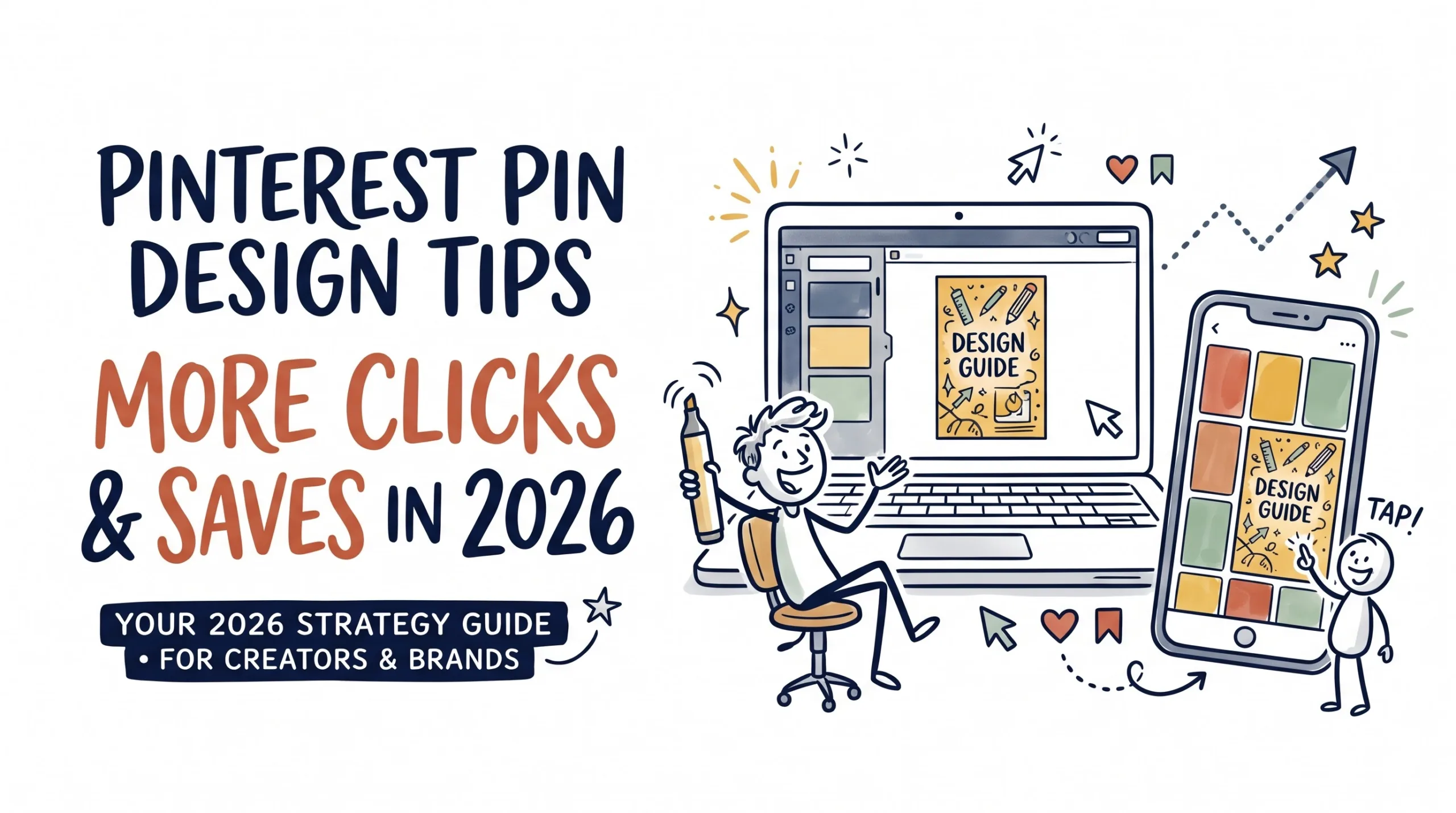
Pinterest pin design tips for 2026: the right 1000×1500 size, readable fonts, color contrast, templates/" class="auto-link">Canva templates and simple tests to get more clicks and saves.
Pinterest pins that earn the click
Sizes, fonts, colors and Canva steps for pins people save and tap through.
Quick summary: Pinterest pin design tips
Pinterest pin design tips start with one fact: Pinterest recommends a 2:3 vertical pin, and 1000 x 1500 pixels is the size most creators use. Pins taller than that can get cropped in the feed. Most people browse Pinterest on a phone, so your headline has to read at thumb size, which usually means 4 to 8 words in a heavy font with strong contrast against the background. Contrast matters more than your exact colors. A pin with one clear focal image, one short promise and a small logo or URL looks cleaner than one stuffed with five fonts. Canva makes the build fast, but free templates get reused by a lot of other pinners, so change the layout before you post. Then test. Make 3 versions of the same pin, change only one thing in each, and compare outbound clicks and saves in Pinterest Analytics after a few weeks.
What good Pinterest pin design looks like in 2026
A Pinterest pin is a vertical image card that, for most bloggers and sellers, links to a page outside Pinterest. Good design has one job: get a stranger to stop, read a short promise and tap. That’s harder than it sounds.
Pinterest behaves more like a visual search engine than a social feed. People type phrases like “easy weekly meal plan” or “budget printable” and scan a grid of results, and your pin sits beside dozens of others that answer the same search.
Say you sell a $9 budget planner on Gumroad. A pin showing the actual planner page on a desk, with “Monthly budget planner you can print today” in big type, tells the searcher what it is, what it looks like and that it’s ready now.
I’d rather publish a plain pin with a clear promise than a gorgeous one with a thin script headline, because the plain one still gets read on a small screen. The trade-off is that plain pins can look generic, and that’s where the visual hooks later in this guide help.
Better pin design pays off more in 2026
Pinterest in 2026 is full of AI-made images and recycled templates, and that changes what catches attention. Pinterest has added labels for content it identifies as AI generated or AI modified, and it lets users choose to see less of that content in some categories. These rules shift often, so read the current policy in the Pinterest Help Center before you plan around AI visuals.
Real photos look useful again. A slightly imperfect shot of your printed planner on a kitchen counter can feel more trustworthy than another polished AI background, and it shows the searcher exactly what they’ll get.
Pins also tend to last. A pin you publish in March can still turn up in searches in December, because Pinterest shows pins by keyword and topic rather than by date alone. That long life cuts both ways: a weak design keeps underperforming for months, while a strong one keeps appearing after you’ve moved on to newer posts.
For a food blogger, that might mean one bright overhead photo of the finished dish with “15-minute garlic noodles” in heavy type across the top and nothing else competing for attention.
Size, fonts, color and mobile checks for every pin
Each tab below covers one part of the pin. Open them in order once. After that, use them as a checklist before you hit publish on any new design for your blog or shop.
Pinterest pin design tips for size and safe zones
Design at 1000 x 1500 pixels, which is a 2:3 ratio. Pinterest notes that pins taller than 2:3 may get cut off in the feed, which is why long infographic pins often lose their last section.
- Keep text and logos a little away from the edges so nothing feels cramped or gets trimmed in previews.
- Put the headline in the top half, where the eye lands first when the grid loads.
- Export text-heavy pins as PNG to keep small type sharper before Pinterest compresses the file.
- Square 1000 x 1000 pins still work for product shots, but they take up less space in the feed than a 2:3 pin does.
Fonts that read at thumb size
Use one heavy sans serif for the headline and, at most, one second font for a short supporting line. In the Pinterest app the home feed is usually two columns wide, so your pin shows up at roughly half the screen width. I’d skip script fonts for headlines unless you’re in a niche like weddings, where readers expect them; even then, limit the script to a single word.
- Montserrat ExtraBold, Anton and League Spartan are all in Canva and stay legible at small sizes.
- Break headline lines where the meaning pauses, so “Easy freezer meals / for busy weeks” reads as two clean chunks.
Color and contrast
Contrast decides whether people can read your pin, and your favorite palette comes second. White text on a pale pink photo disappears, while navy text on a pale yellow block stays sharp at any size.
- Use a solid or semi-transparent color block behind text when the photo underneath is busy.
- Pick 2 or 3 brand colors and reuse them, so people who saw your last pin recognize the next one.
- Run your text and background colors through WebAIM’s free Contrast Checker and aim for at least 4.5:1, the WCAG level for normal text.
- Orange and red pull the eye fast, but a pin that’s red from top to bottom feels loud.
- View the pin in black and white; if the headline fades, contrast is too low.
The phone test
Pinterest has long said most of its use happens on mobile, so judge each design on a phone before you trust what your laptop screen shows.
- Drop the zoom control in the bottom bar of the Canva editor to about 25% to preview grid size.
- Send the finished PNG to your phone and look at it next to real search results.
- If you can’t tell what the pin offers within two seconds, cut words.
Six visual hooks that stop the scroll on Pinterest
A hook is the one element a scanner notices before reading anything else. Use one per pin, since stacking several makes the design noisy.
A number in the headline
A specific count like “17 freezer meals” or “5 Canva shortcuts” tells the reader how much they get. Odd numbers are a popular habit, though there’s no public proof they beat even ones.
Before and after split
Split the pin horizontally: a messy budget spreadsheet on top, the clean planner page below. It suits organizing, home decor and recipe niches, and it explains the result with very few words.
Your product in a real setting
Mockups are fine. A printed page on a real table usually feels more honest.
A peek at the inside
Show the first 2 pages of a 40-page guide fanned out at an angle so people want the rest. This works well for digital products sold on Gumroad, because buyers can judge the quality before they click.
A thick frame or color block
A 20-pixel border in a bright brand color separates your pin from the photos around it. It looks dated if every pin you post uses one.
A question people already ask
Use the exact search phrase as a question, like “Is a 2:3 pin still the best size?” Pair it with an image that hints at the answer.
For anyone selling digital products, the peek at the inside is my first pick, because it answers the buyer’s real worry about quality. It’s weaker for blog posts with nothing physical to show, and a number headline usually fits those better.
Build a Pinterest pin in Canva in 7 steps
This workflow builds one pin with a free Canva account. Pro features are mentioned where they save time. None are required.
- Start at the right size: On the Canva home page, click Create a design, type “Pinterest Pin” and pick the 1000 x 1500 px option.
- Pick a template, then change it: Search the template panel for your topic, choose a layout you like, and change the fonts, colors and photo before you touch anything else, because an unchanged template looks like everyone else’s pin.
- Write the headline first: Use 4 to 8 words that match what people search, such as “Printable meal planner for busy weeks,” with the main keyword near the start.
- Add one strong image: Upload your own product photo or mockup through Uploads. Background Remover (a Pro tool) gives a clean cutout, or you can shoot on a plain background instead.
- Place your brand mark: Add your logo or site name, like digitalideatool.com, small and centered at the bottom.
- Check it at grid size: Zoom out to about 25% or send the file to your phone. If the headline is hard to read, make it bigger or shorter.
- Download and publish: Click Share, then Download, and choose PNG. In Pinterest, go to Create, then Create Pin, upload the file, write a keyword-rich title and description, and paste your destination link.
🚀 Want pin-ready templates?
Browse Pinterest template packs on Gumroad, or check out our own digital products.
Canva Pinterest templates vs. other pin design tools
Canva is the default for most pinners, but it isn’t the only option. Here’s how four common tools compare for pin work.
| Tool | Best for | Learning curve | Watch out for |
|---|---|---|---|
| Canva | Fast pins from templates with a built-in Pinterest Pin size | Low | Popular templates get reused a lot; some tools need Pro |
| Adobe Express | Quick social graphics with Adobe Fonts | Low | Template choice varies by niche |
| Figma | Reusable pin layouts built with components | Medium to high | Too much setup for a few pins a week |
| Tailwind Create | Many pin variations from one image and link | Low | Designs can resemble other users’ pins; check plan limits |
Canva is enough for most people. I’d move to Figma only if you post 20 or more pins a week and want one master layout you can update in one place, since the setup time doesn’t pay back at lower volume. Fees and rules change, so check Canva’s official site before you decide.
Common Pinterest pin mistakes and quick fixes
Most weak pins fail for small reasons. These six show up often in Pinterest search results.
- Too many words: A 25-word headline reads like a paragraph. Keep it under about 8 words and move the details into the pin description.
- Low-contrast text on photos: Add a solid color block behind the text, or darken the photo with a semi-transparent layer.
- Extra-long pins: A 1000 x 3000 infographic can get cut off in the feed. Split it into a 2:3 pin and send people to the full version on your blog.
- No brand mark: Add your site name small at the bottom so a saved and re-shared pin still points back to you.
- A promise the page doesn’t keep: If the pin says “free” and the landing page asks for payment, people leave fast and may report it. Match the pin to the page exactly.
- Publishing once and stopping: Pinterest has encouraged creators to publish fresh pins, meaning new images, instead of re-pinning the same one, so make 2 to 4 new designs for your best posts over a few months.
Launch your dream website today
Hosting, domains, an AI website builder, business email and ecommerce tools, managed from one dashboard.
Get started nowAffiliate link. Availability depends on plan and country. Hover to pause.
Pinterest pin design FAQ
What size should a Pinterest pin be in 2026?
What font is best for Pinterest pins?
How many words should be on a Pinterest pin?
Do Canva templates hurt Pinterest reach?
How often should I make new pin designs?
Should I make video pins or image pins?
How do I know if my pin design is working?
Quick quiz: test your pin design eye
There are 10 questions here. Open each one to check your answer, then count how many you got right before you design your next batch of pins for the week ahead.
1. Which ratio does Pinterest recommend for standard pins?
- 1:1
- 2:3
- 16:9
2. Which pixel size do most creators use for a 2:3 pin?
- 1000 x 1500
- 1080 x 1080
- 1920 x 1080
3. What can happen to pins much taller than 2:3?
- They get extra reach
- They may be cropped in the feed
- They turn into video pins
4. Which font style is safest for a pin headline?
- Thin script
- Bold sans serif
- Hairline serif
5. About how many words should a pin headline have?
- 4 to 8
- 15 to 20
- 30 or more
6. What fixes white text on a busy photo?
- Smaller text
- A solid color block behind the text
- More stickers
7. Where should a small logo or site name usually go?
- Over the main image
- At the bottom of the pin
- Nowhere at all
8. What’s the cleanest way to test two pin designs?
- Change everything at once
- Change one element at a time
- Delete the older pin
9. Which Pinterest metric shows people leaving to visit your site?
- Outbound clicks
- Followers
- Board count
10. Which hook suits a digital product best?
- A peek at the inside pages
- A blank background
- A long paragraph of text
Your first 48 hours with Pinterest pin design tips
Pick one blog post or product that already gets some traffic and build new pins for it first. A page that already performs makes testing easier, because when a pin underperforms you’ll know the design is the problem and the page behind it isn’t.
- Search and screenshot: Type your main keyword into the Pinterest app and save the top two rows.
- Make 3 versions: Build one pin in Canva, then duplicate it twice and change only the headline or the image.
- Publish and log the date: Post them a few days apart and compare outbound clicks in Pinterest Analytics after 3 to 4 weeks.
✨ Ready to sell what you pin?
Find templates and tools on Gumroad, or browse the digitalideatool.com store.
Disclaimer & compliance note
The content, news, topics, and ideas presented on this platform are collected and compiled from various websites, online sources, and digital platforms.
We do not guarantee the accuracy, authenticity, completeness, or reliability of any information, news, or sources mentioned.
Readers are strongly encouraged to independently verify all facts, claims, sources, and information through trusted and official channels before relying on or acting upon them.
This content is provided for general informational and educational purposes only.
Affiliate disclosure: This post has Gumroad and Hostinger affiliate links. If you buy through them, we may earn a commission at no extra cost to you. Products mentioned include Pinterest pin templates, Canva template packs, digital planners and website hosting.
No guarantee: These pin design tips can’t guarantee clicks, saves, traffic, sales or earnings. Results depend on your niche, your content and Pinterest’s changing systems, and nothing here is financial, legal or business advice.
AI use: This post was drafted with AI assistance and reviewed and edited by a human before publishing. Questions? Contact support@digitalideatool.com.
✓ Reader reminder: always verify important information using trusted, authoritative, and official sources before making decisions or taking action.
📝 Key Takeaways & Action Notes
Jot down insights, next steps, or thoughts from this post. Your notes save automatically in your browser.
- What is the #1 breakthrough insight you took away today?
- What is one concrete action you will take in the next 24 hours?
- What questions or ideas do you want to research further?
Stay ahead with exclusive updates
Join our community. Get curated industry trends, actionable guides, and fresh resources delivered straight to your inbox.